
Using Shift Overview
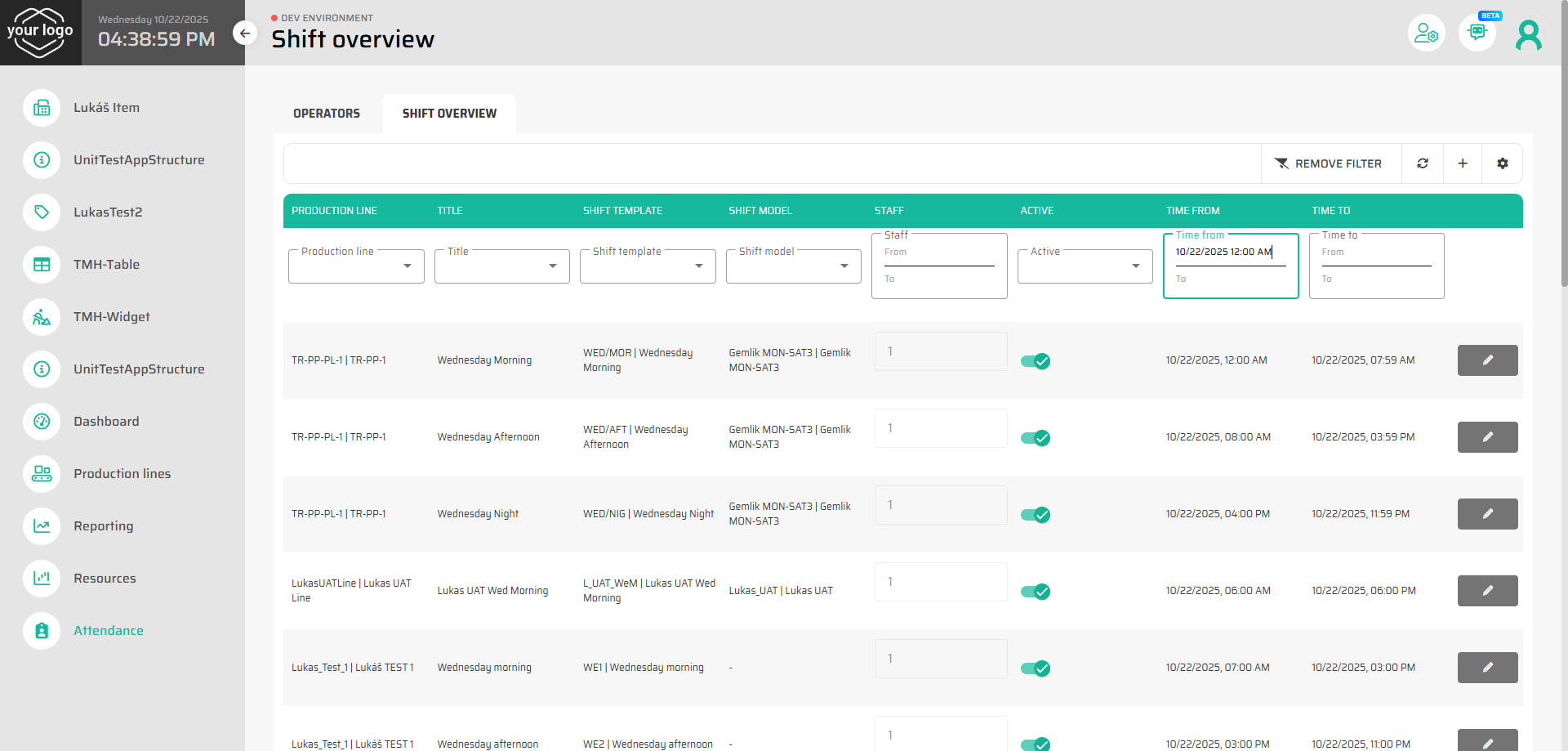
The Shift Overview tab provides a complete picture of all shifts in the production environment — both current and upcoming.
It allows Team Leaders and Supervisors to:
monitor daily and weekly shift schedules,
check which operators are planned or missing,
adjust shift details when necessary,
and ensure that every production line has the right coverage before the workday begins.
This view brings together all shift-related data in one place, making it the main tool for verifying that production plans match actual workforce availability.
Where to Find It
Inside Production Control, open the Attendance module and select the Shift Overview tab.
Here, you’ll see a list of all existing shifts in the system.
Each row represents one planned shift and includes key information such as:
Production line name
Shift code or time range
Number of assigned operators
Required staffing count
Current status (active, completed, or disabled)
Filtering and Searching Shifts
You can use filters at the top of the page to quickly locate specific shifts:
By Line – show only shifts for a specific production line or area.
By Date – narrow down the view to a selected day or week.
By Operator Count – identify understaffed or overstaffed shifts.
By Status – display only active, upcoming, or finished shifts.
Filtering helps Team Leaders focus on their own area of responsibility and identify gaps that need attention.
Editing or Disabling Shifts
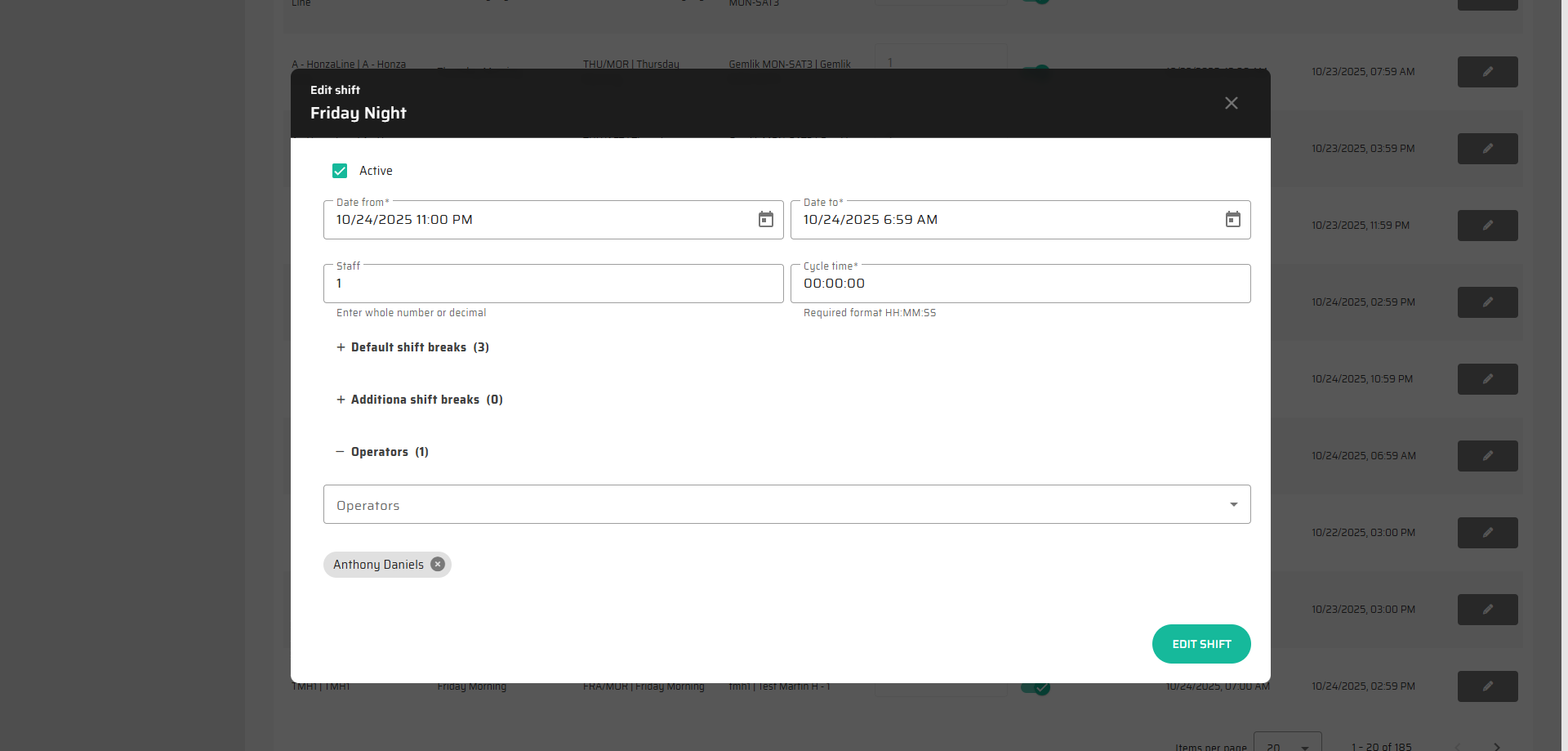
When a shift requires an adjustment, you can open it directly from the overview:
Click the shift row to open its detail dialog.
Review or edit key parameters such as:
Date and time
Planned number of operators
Assigned operators
Defined breaks or downtime
Confirm your changes to update the schedule immediately.
If a shift should not take place (for example due to maintenance or production change), you can disable it using the Deactivate button.
Disabled shifts remain visible for reference but are excluded from planning and attendance reports.
Assigning Operators from the Shift View
The Shift Overview also allows you to assign operators directly — an alternative to using the Operators tab.
Open the shift you want to staff.
In the Operators section, choose one or more available operators from the list.
Confirm to save the assignment.
Assigned operators appear instantly both in this shift and in their individual calendars.
This direct approach is especially useful for filling last-minute vacancies or covering unexpected absences.

System Behavior
Any change in shift assignments is instantly synchronized with operator calendars and attendance logs.
Disabling a shift removes it from the operator’s upcoming schedule and related KPIs.
All modifications are logged for traceability and can be reviewed in each operator’s History tab.
Completed shifts automatically move to the Finished state and remain visible for reporting and audits.
Tips and Best Practices
Use filters by line and date at the start of each shift to quickly confirm coverage.
Check Shift Overview after processing leave requests to ensure no uncovered gaps remain.
For recurring adjustments, consider updating the Shift Calendar configuration in master data to avoid repeated manual edits.
Next Step
Continue to the next topic: Operator’s Guide - learn how operators log in, view their shifts, and manage attendance directly from their workstations or learn about the system regular background checks which automatically ends operator work sessions that meet specific conditions.