
Master Data Preparation (Create Kanban Loop)
Our very first task is to build an initialization flow. We need a way for users to create a new Kanban Loop and define its production routing (the sequence of production lines the cards will pass through).
To do this the right way, we are going to learn one of the most powerful concepts in P4: Subprocesses. Instead of putting all the logic into one giant flow, we will create a small, reusable "helper" flow first, and then call it from our main flow.
Part A: The Helper Flow (Create Loop-Line Relation)
Since linking a production line to a Kanban loop might be a standard action we want to reuse in the future, we will build it as a separate subprocess.
Navigate to Configuration Studio ➔ Process Builder ➔ Flows and click New.
Name it Create Loop-Line Relation.
In this flow we will have 3 nodes: Start - Create object - End
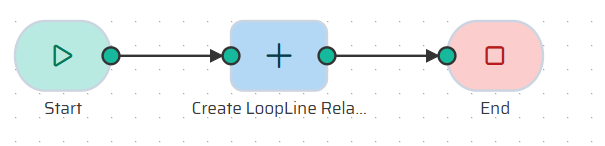
Step 1: The Start Node (Inputs)
Double-Click on the Start node. This helper flow needs three pieces of information to do its job. Add the following Input Variables:
Kanban_Loop(Type: Number)Production_Line(Type: Number)Position(Type: Number)

Step 2: Create the Relation
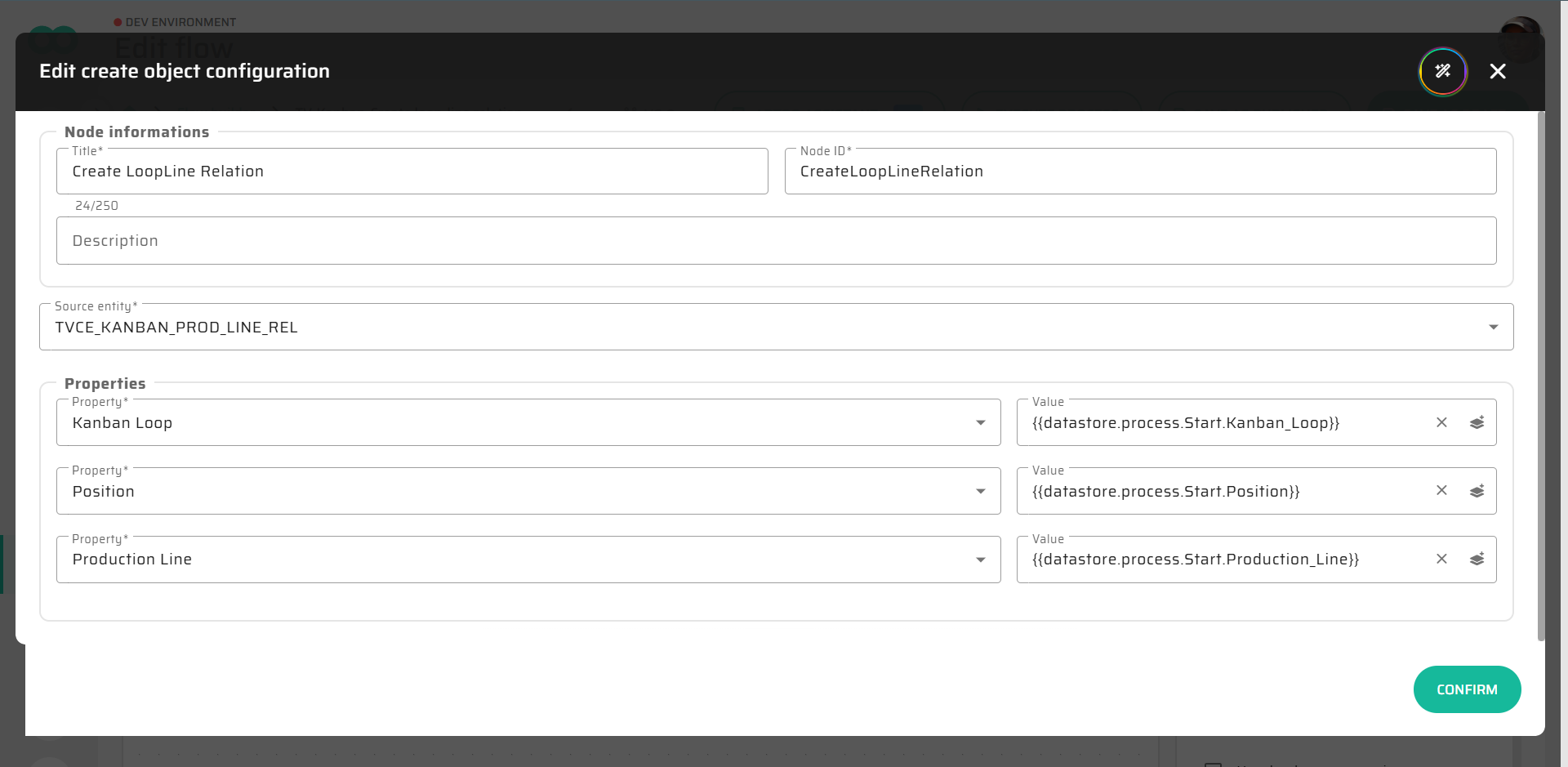
Add a Create Object node and connect it to the Start node. Inside it's edit dialogue set the following:
Source entity: Select
KANBAN_PROD_LINE_REL(the custom entity we made in Part 1).Properties: Use the DataStore (the small icon next to the value field) to map your three input variables (
Kanban_Loop,Position,Production_Line) directly into the entity.
Step 3: End and Publish
Connect the Create node to an End node. Crucial Step: Save this process by clicking SAVE AS PUBLISHED. Only published flows can be used as subprocesses by other flows!
Part B: The Main Flow (Create Kanban Loop)
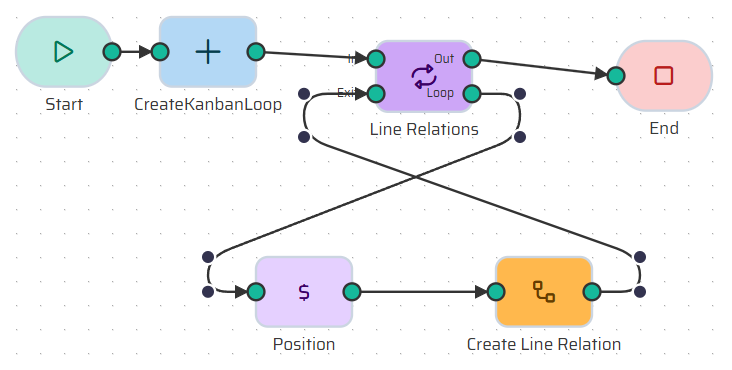
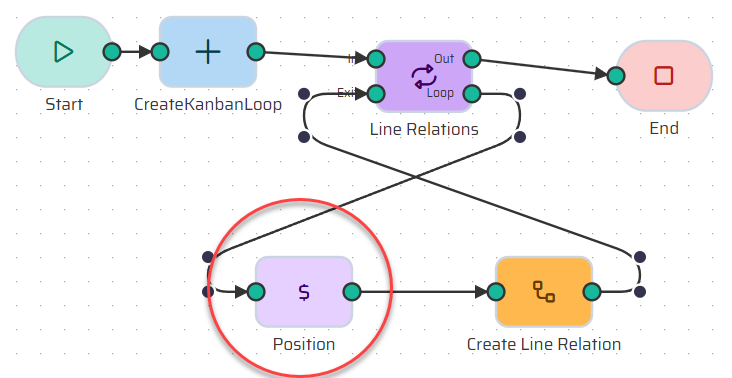
Now, let's build the main flow that the user will actually trigger. Create another new flow and name it Create Kanban Loop. It might look like this by the end of this part.
Step 1: The Start Node
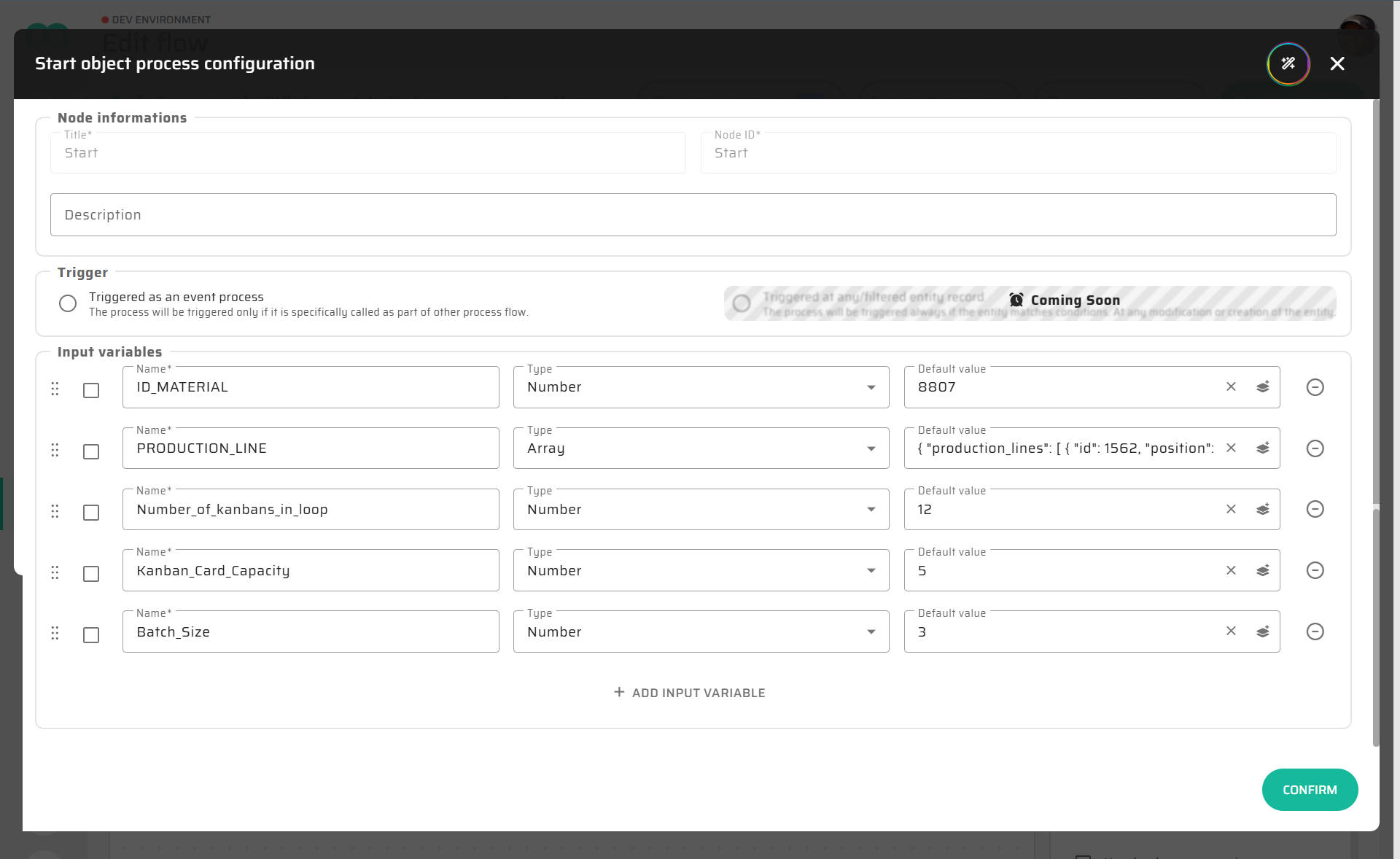
In the Start node, define the data the user will provide:
ID_MATERIAL(Type: Number)Batch_Size(Type: Number)Number_of_kanbans_in_loop(Type: Number)Kanban_Card_Capacity(Type: Number)PRODUCTION_LINE(Type: Array)
(Tip: For testing, you can put a simple JSON array of line IDs into the default value of the PRODUCTION_LINE variable).
{
  "production_lines": [
    {
      "id": 1562
    },
    {
      "id": 1581
    },
    {
      "id": 1681
    }
  ]
}
Step 2: Create the Loop
Add a Create Object node.
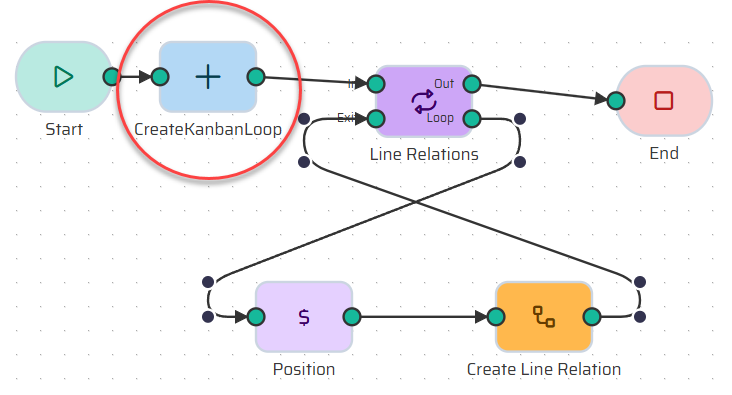
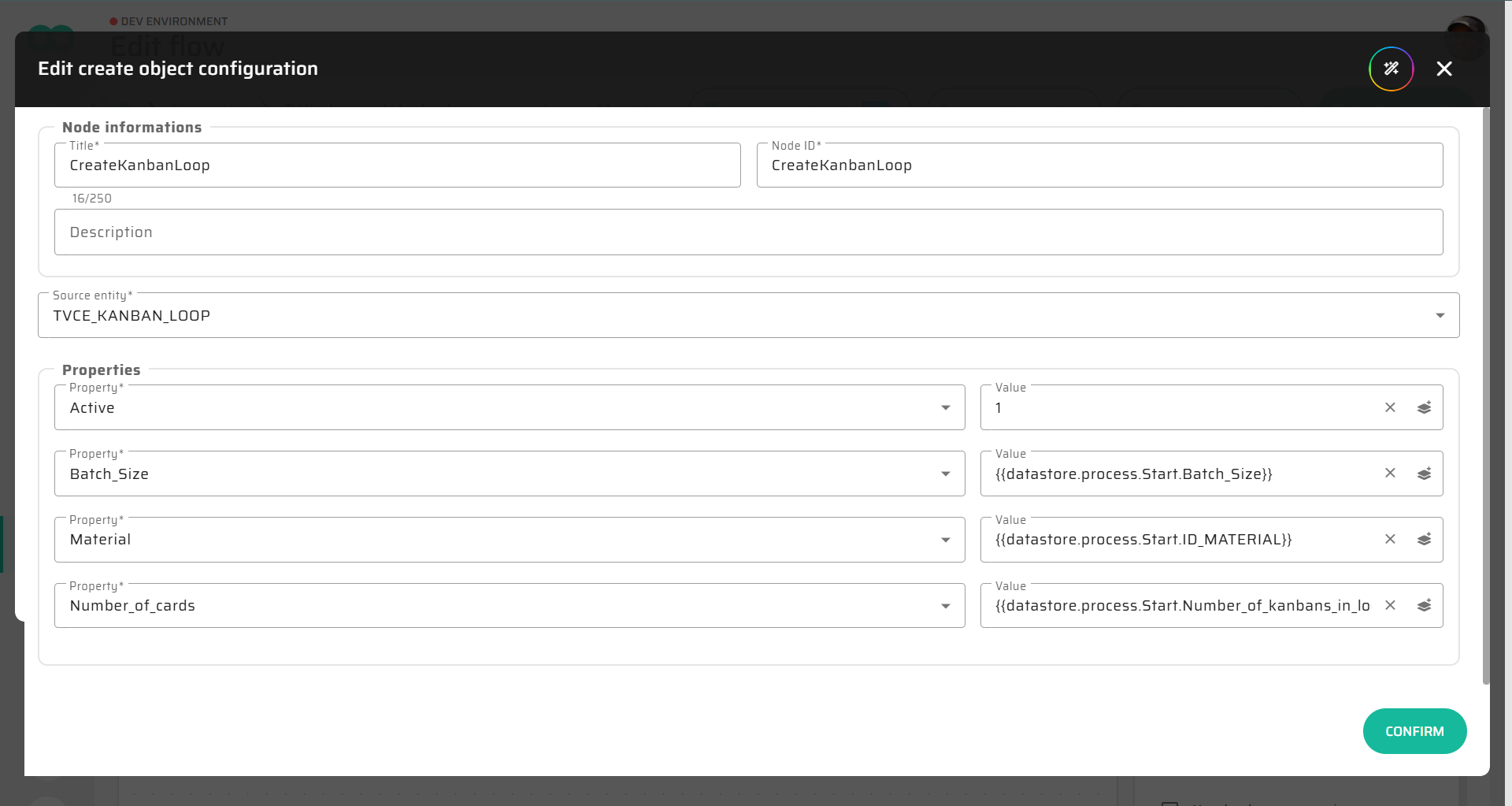
Source entity:
KANBAN_LOOPMap the
Batch_Size,Material, andNumber_of_cardsfrom the Start node variables. SetActiveto a static value of1.
Step 3: Set Up the Loop Node
We need to iterate through the array of Production Lines.
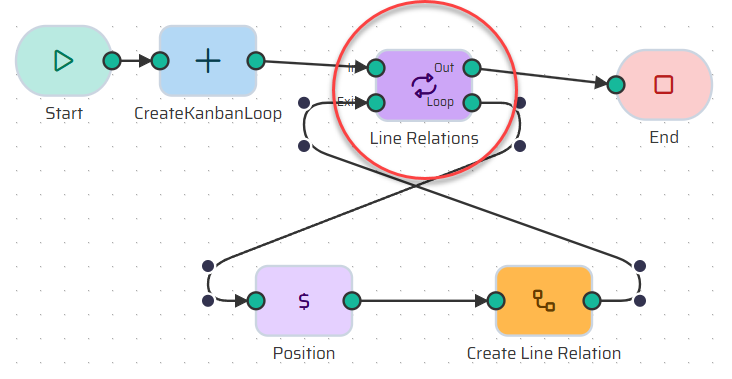
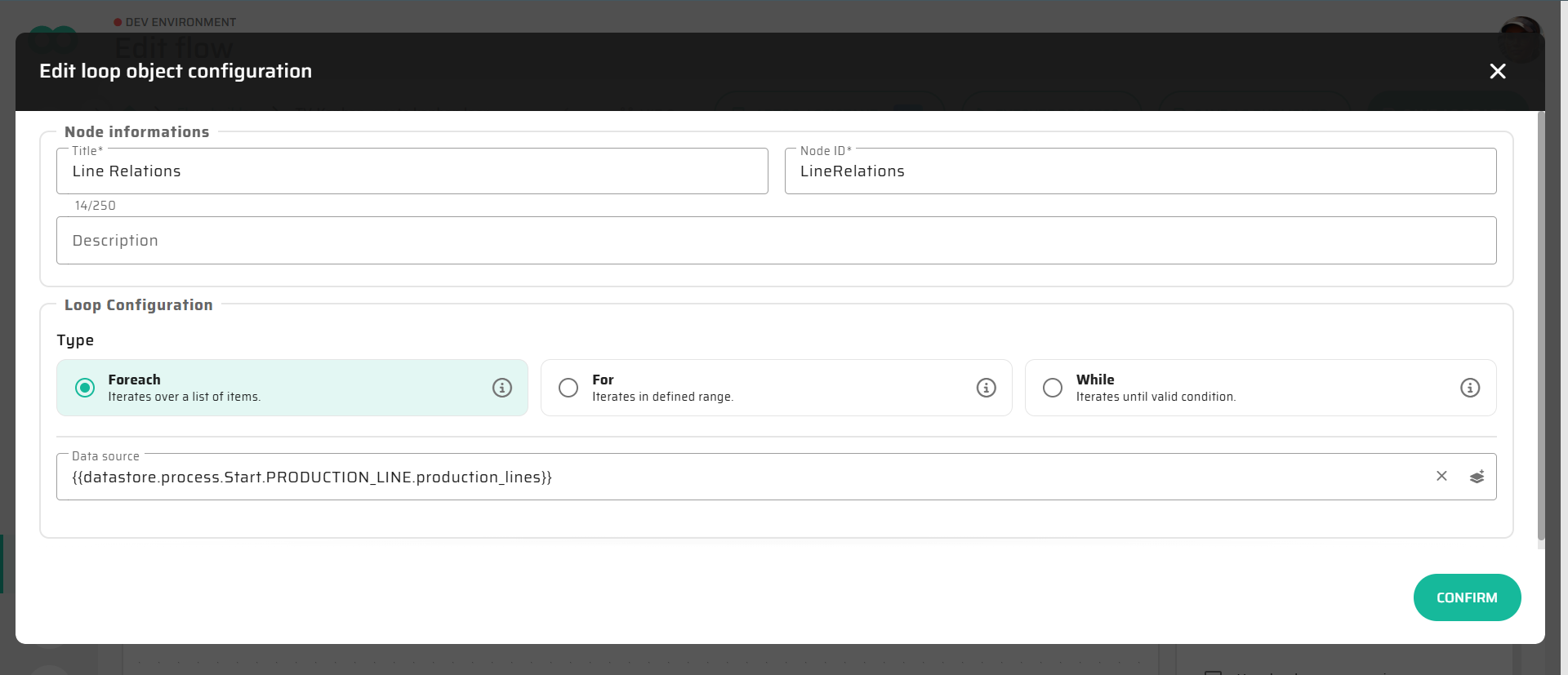
Add a Loop node and name it Line Relations.
Type:
Foreach.Data source: Select the
PRODUCTION_LINEarray from the Start node.
Step 4: Track the Position (Variable Assignment)
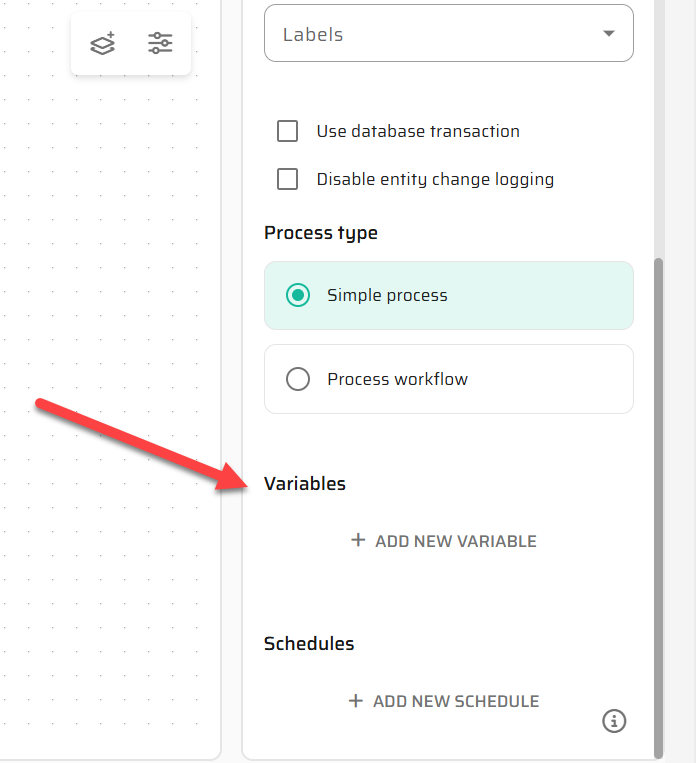
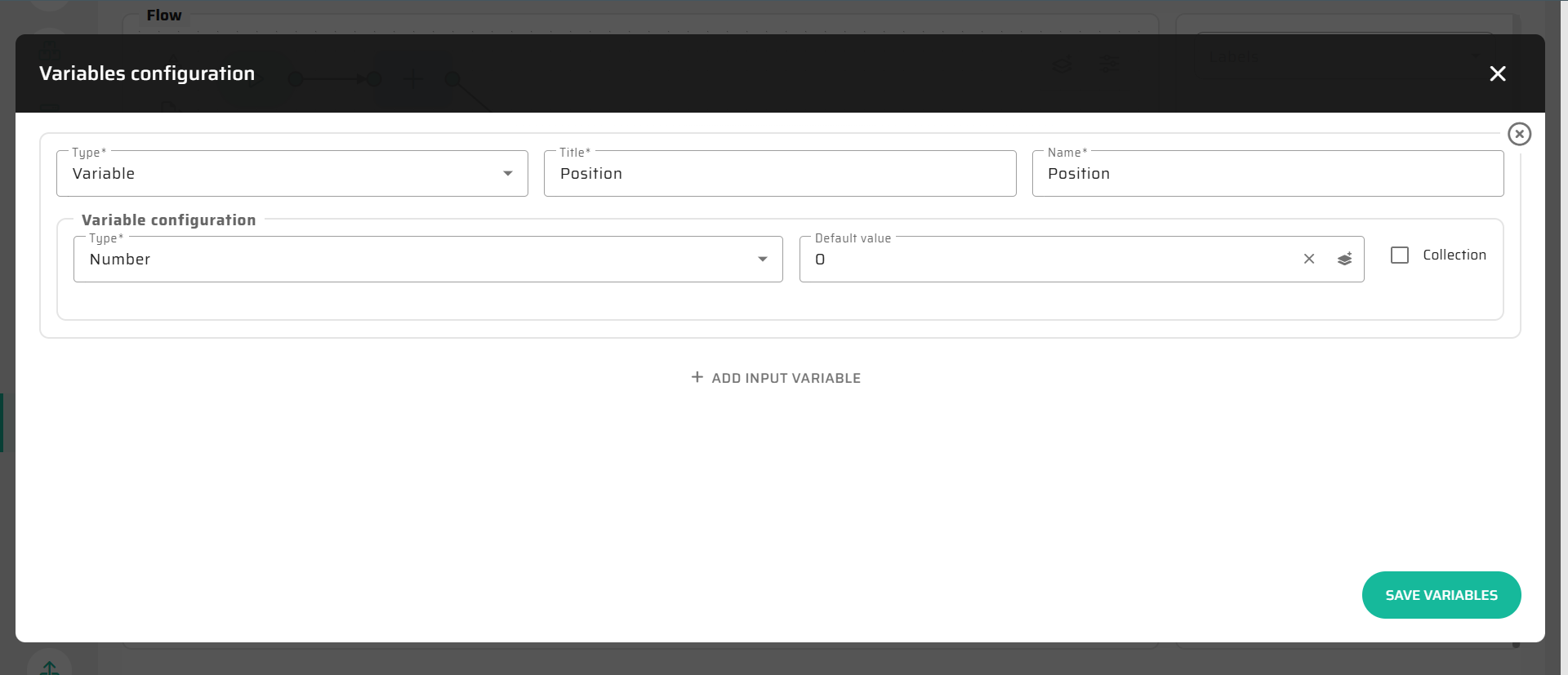
In the right-hand panel of the Flow Builder, create a Process Variable called Position (Type: Number, Default value: 0).
Inside the Loop, add a Variable assignment node:
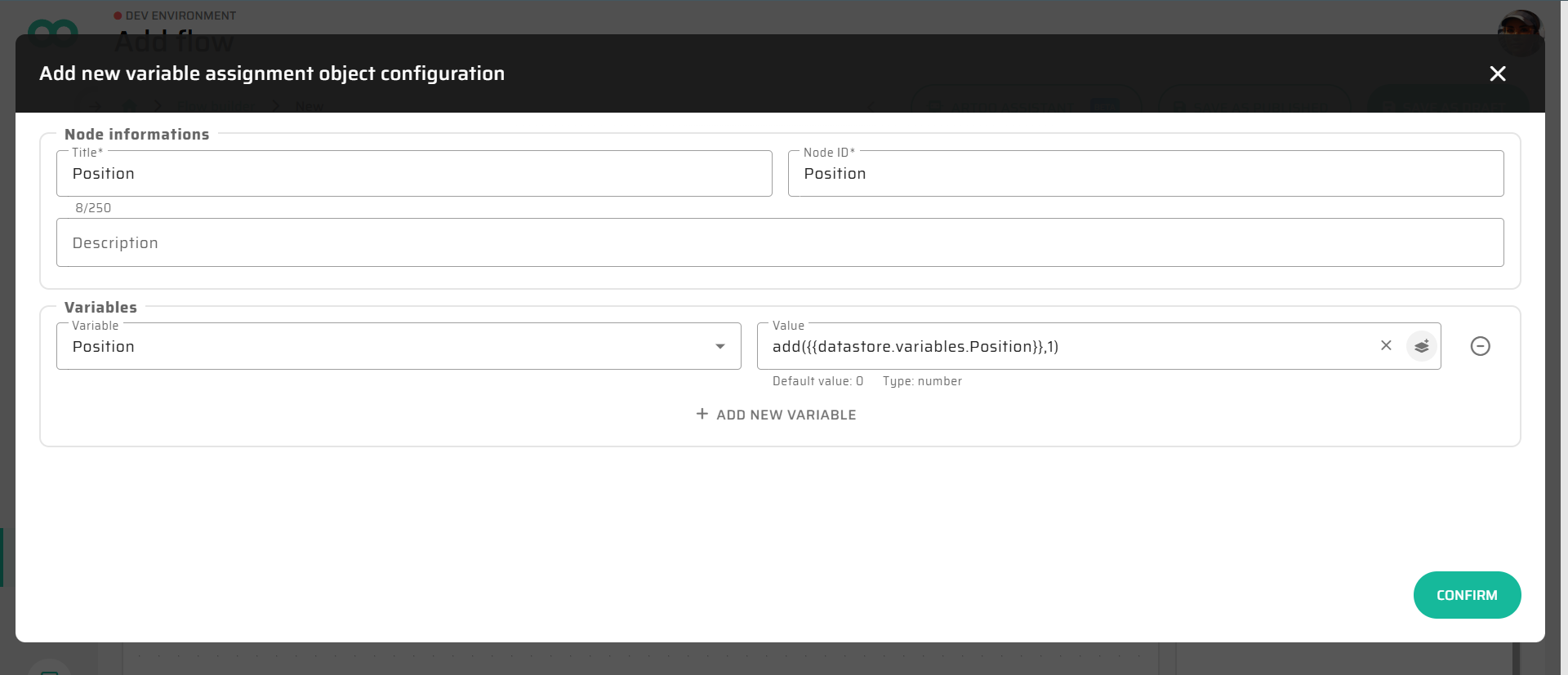
Select the
Positionvariable.Set its value using this simple expression to increase it by 1 every cycle:
add({{datastore.variables.Position}}, 1)
Step 5: Call the Subprocess
Still inside the loop, add a Subprocess node and connect it after the Variable assignment.
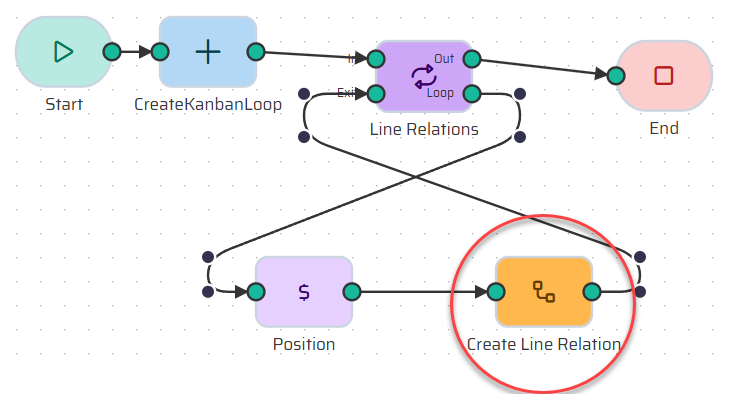
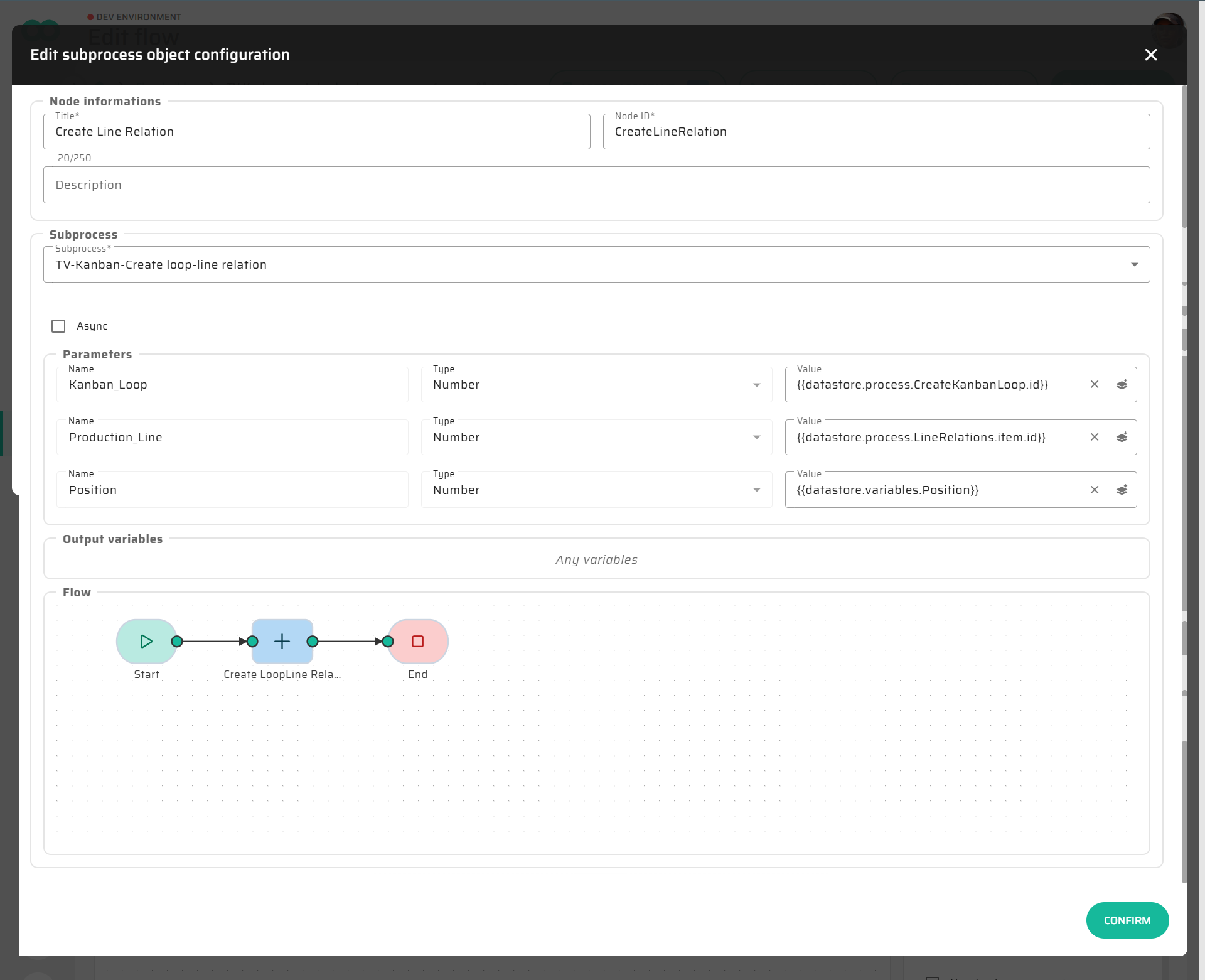
Select your published Create Loop-Line Relation flow.
The system will automatically ask you to provide the inputs for this helper flow:
Kanban_Loop: Select the ID generated by your first
Create Kanban Loopnode.Production_Line: Select
item.idfrom yourLine Relationsloop node.Position: Select your newly calculated
Positionvariable.
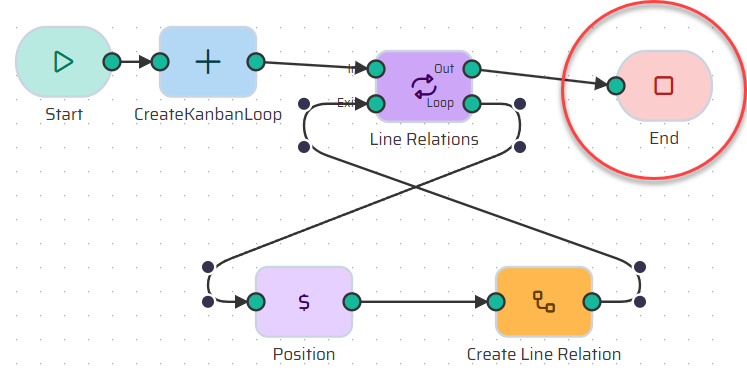
Close the loop by connecting this Subprocess node back to the Loop node.
Step 6: End and Test
Connect the "Out" port of your Loop node to an End node. Here, you can output the CreatedLoop data as an Array so the system knows it finished successfully.
Test It with Debugger!
Click Execute Process at the top right.
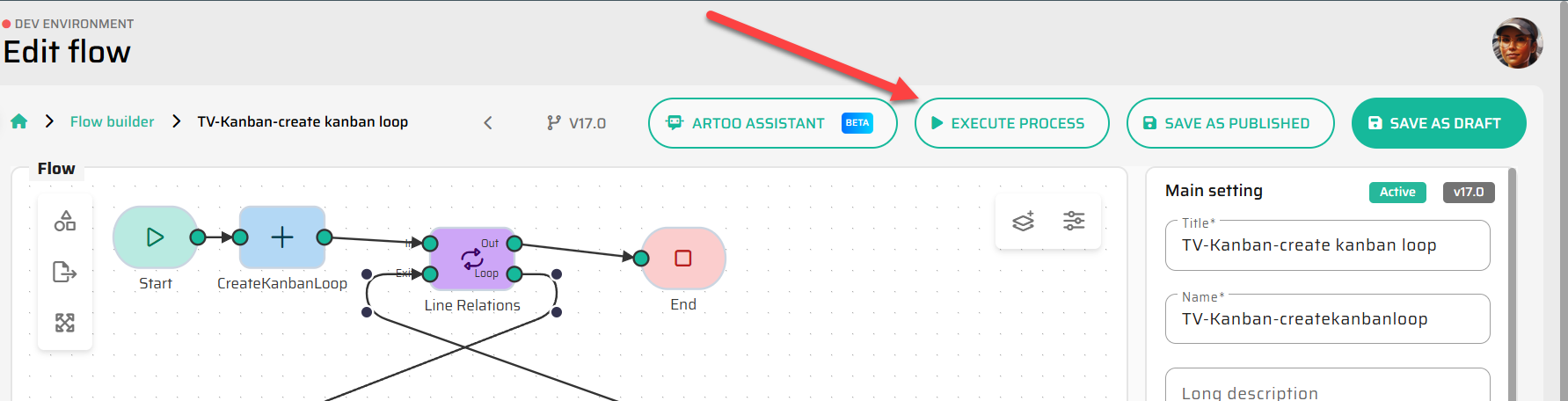
The Debugger will open in a new tab. This is your safe testing environment.
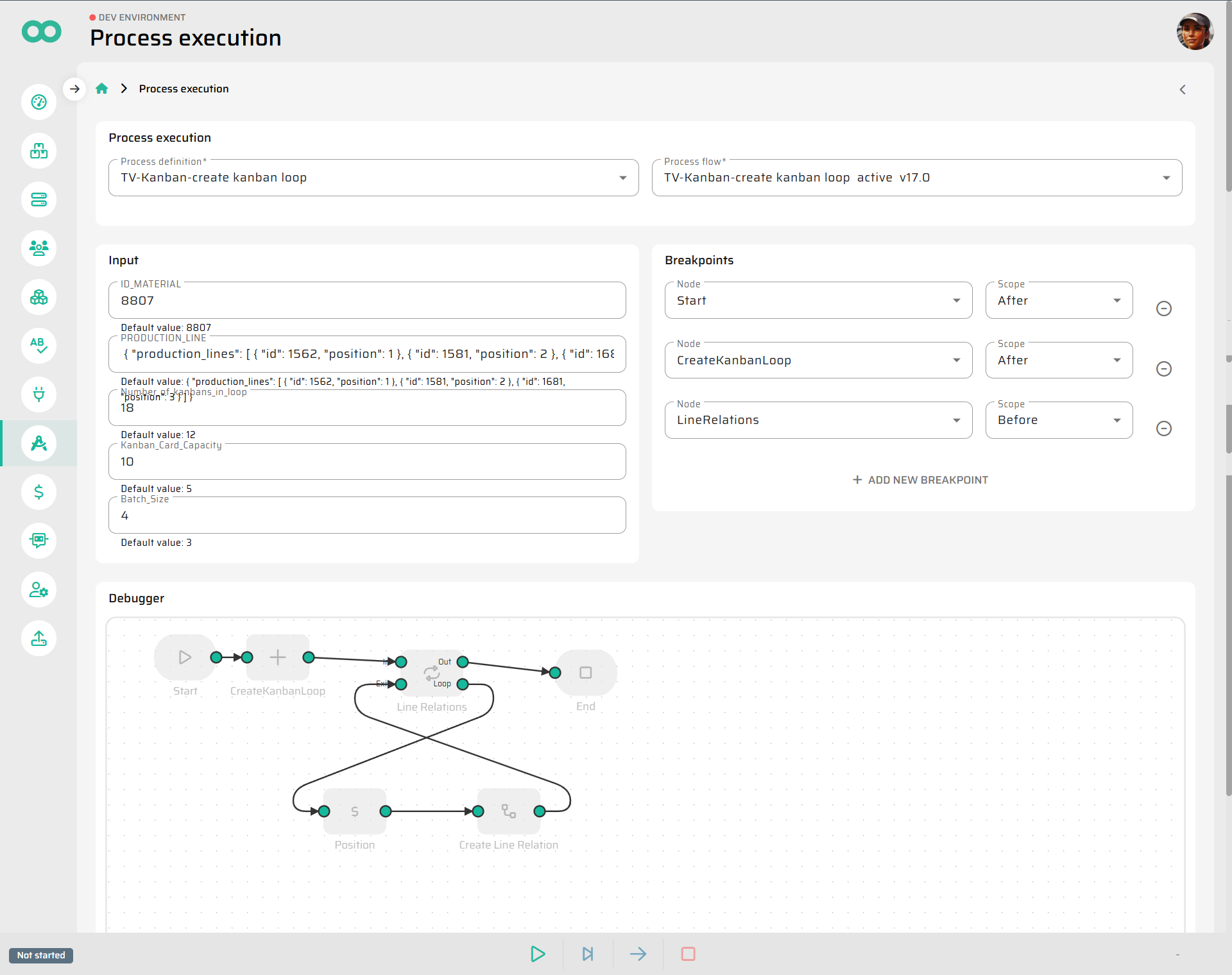
Hit the play button at the bottom and watch how your flow creates the loop, iterates through the array, and calls your subprocess.
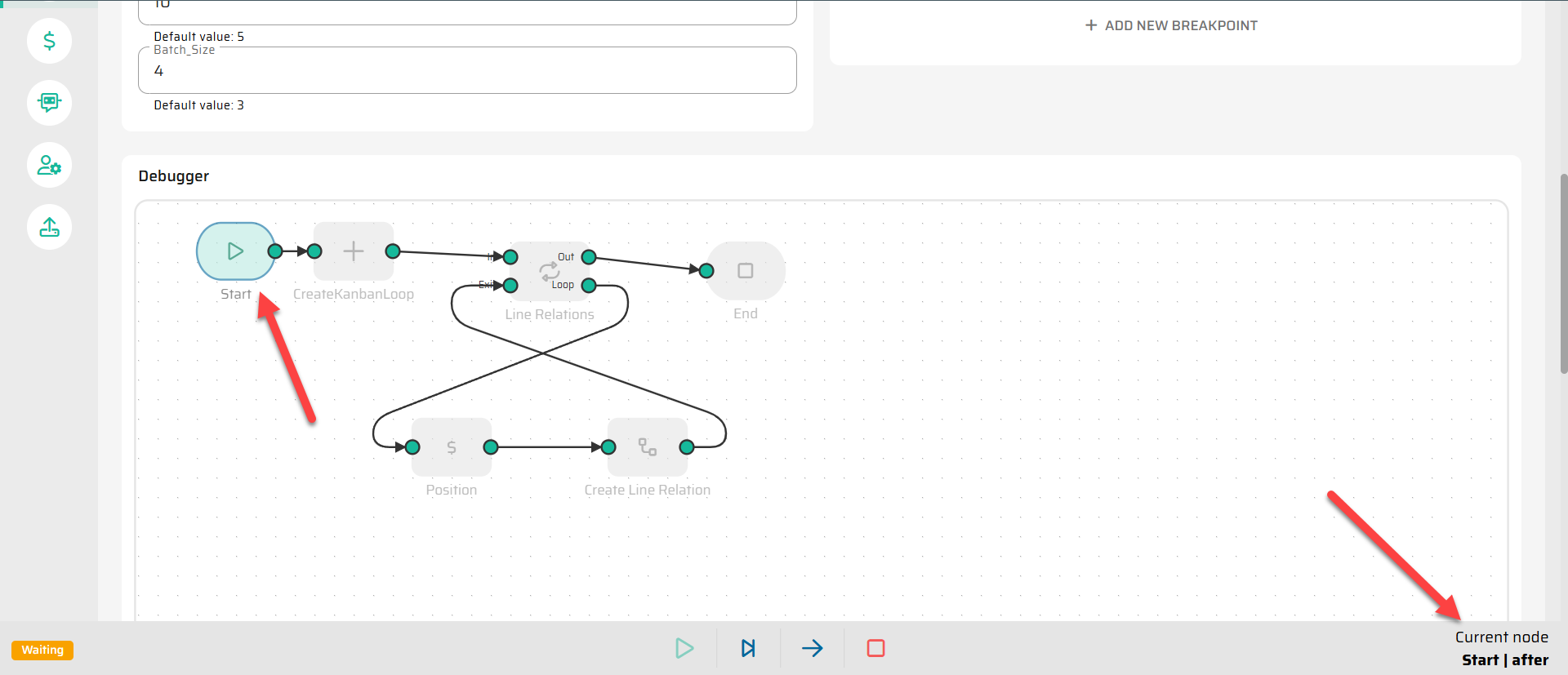
If you scroll lower below the process preview, the current DataStore of the process is for you to review. Go through the whole process, check if everything behaves as expected and if necessary return to the process and change what is needed to achieve your desired result.
.png?inst-v=9ab3c13d-5a67-4df4-bb7b-b2b955fbf737)
Next up: ➔ Flow 2: Initializing Kanban Cards