
Setting Up the Data Model (Entities & Views)
Before we can build any logic or user interfaces, we need a place to store our data. In the P4 Platform, database tables are represented by Application Entities.
When building a completely new feature like our Kanban Board, we don't have to rely on standard system entities. We can create our own Custom Entities from scratch.
In this step, we will create the four core entities that make up our Kanban process, and one Custom View to make reading the data easier.
Step 1: Creating Custom Entities
Navigate to Configuration Studio ➔ Resources ➔ Application Entities and create the following entities. For each entity, ensure you select the Custom bundle.
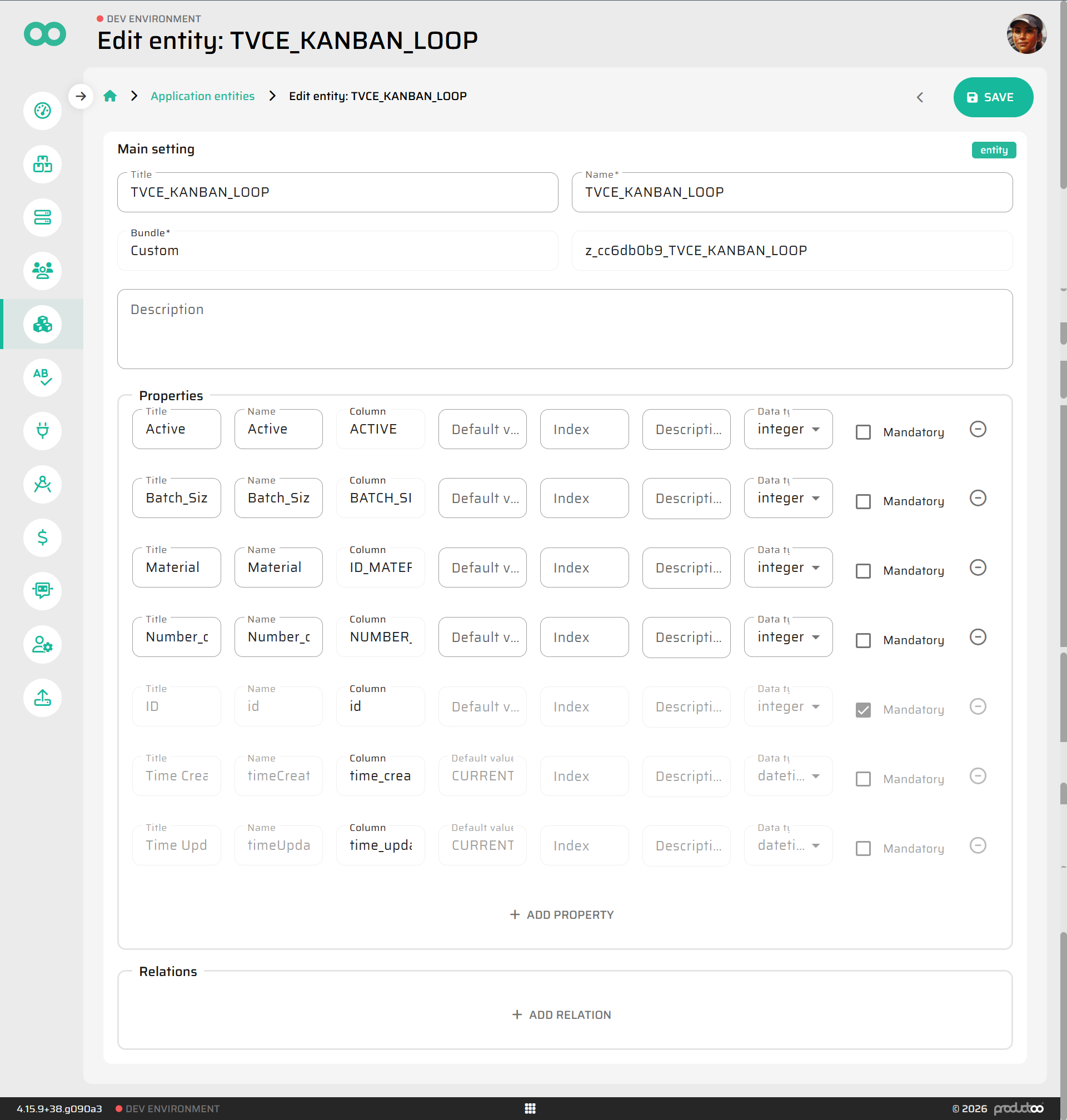
1. KANBAN_LOOP
This entity stores the master definition of our loop (what material it produces, how many cards it uses, etc.).
Properties to add (Type):
Active(Integer)Batch_Size(Integer)Material(Integer)Number_of_cards(Integer)
2. KANBAN_PROD_LINE_REL
This acts as a sub-entity for the loop. It expands the loop with production routing by linking it to specific production lines and defining their order.
Properties to add:
Position(Integer)KanbanLoopID(Integer)ProductionLineID(Integer)
Relations to add (Target Entity):
Kanban Loop➔KANBAN_LOOP(Your custom entity)Production Line➔Production Line(Standard system entity)
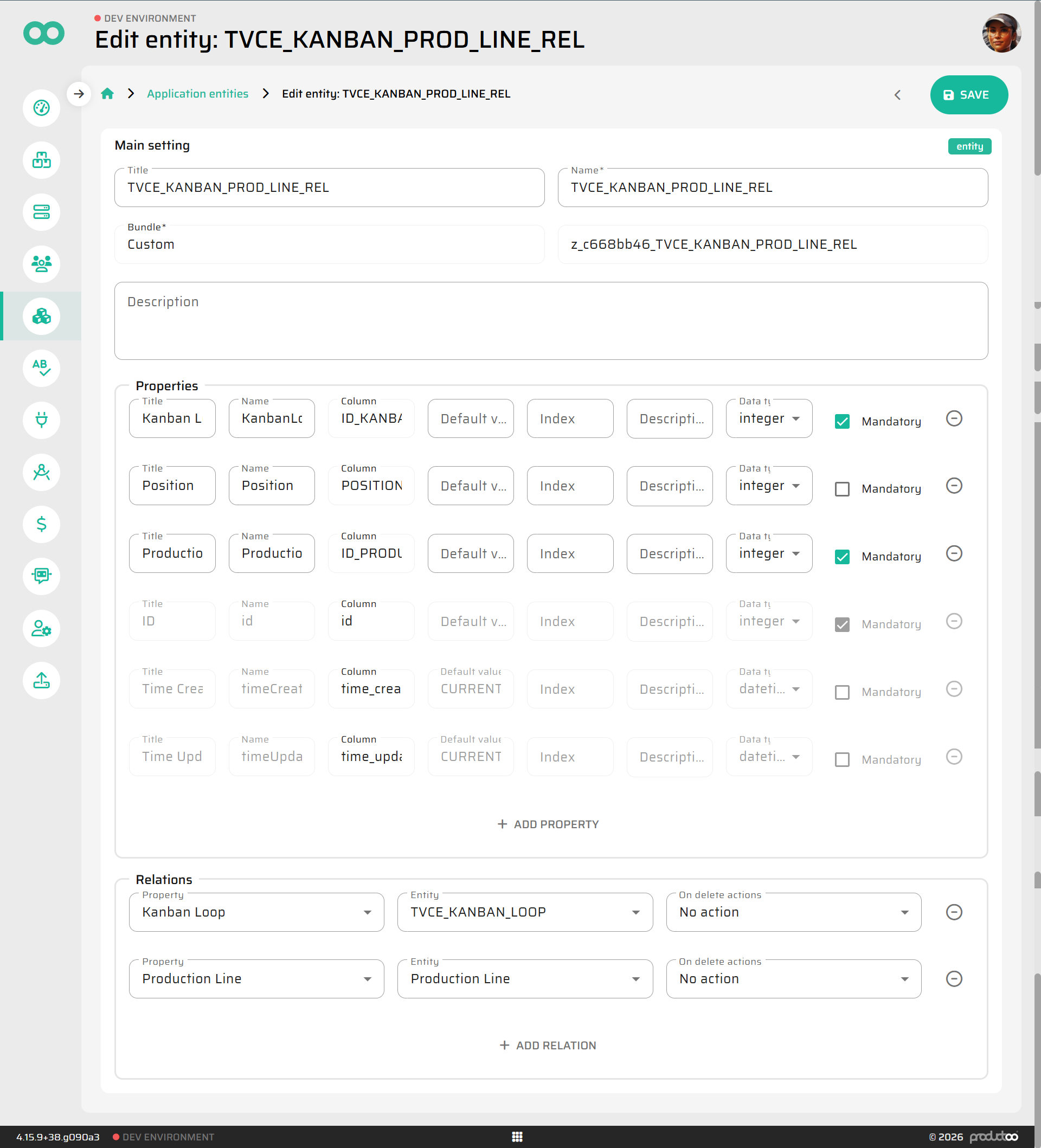
After filling the Properties, save the entity. The ID, TIME_CREATED and TIME_UPDATED are created automatically by the system for every entity.
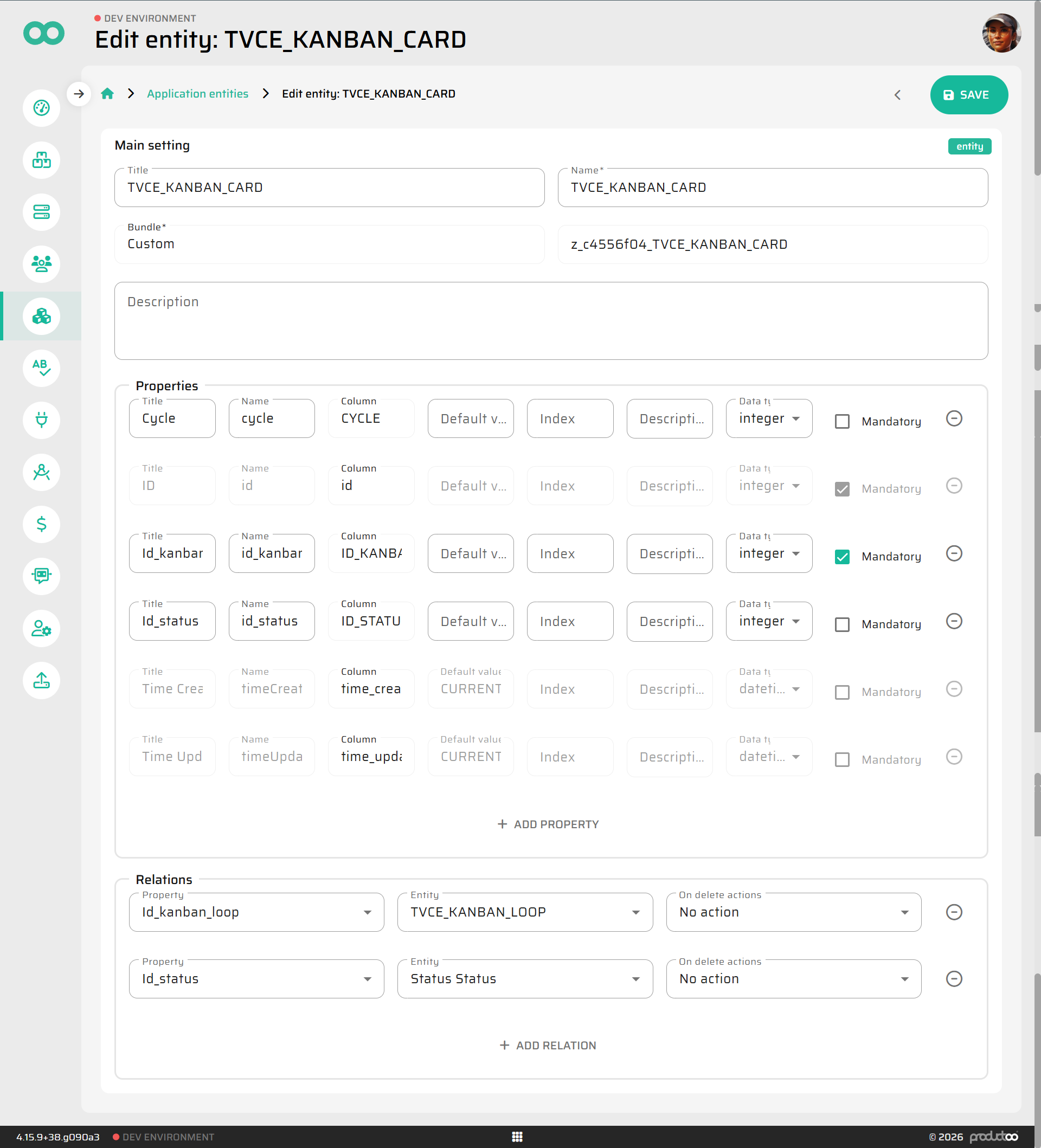
3. KANBAN_CARD
This represents the actual generated Kanban Cards that will move through our loop.
Properties to add:
Cycle(Integer) - tracks how many times the card went through the loop.KanbanLoopID(Integer)StatusID(Integer)
Relations to add:
Id_kanban_loop➔KANBAN_LOOPId_status➔Status Status
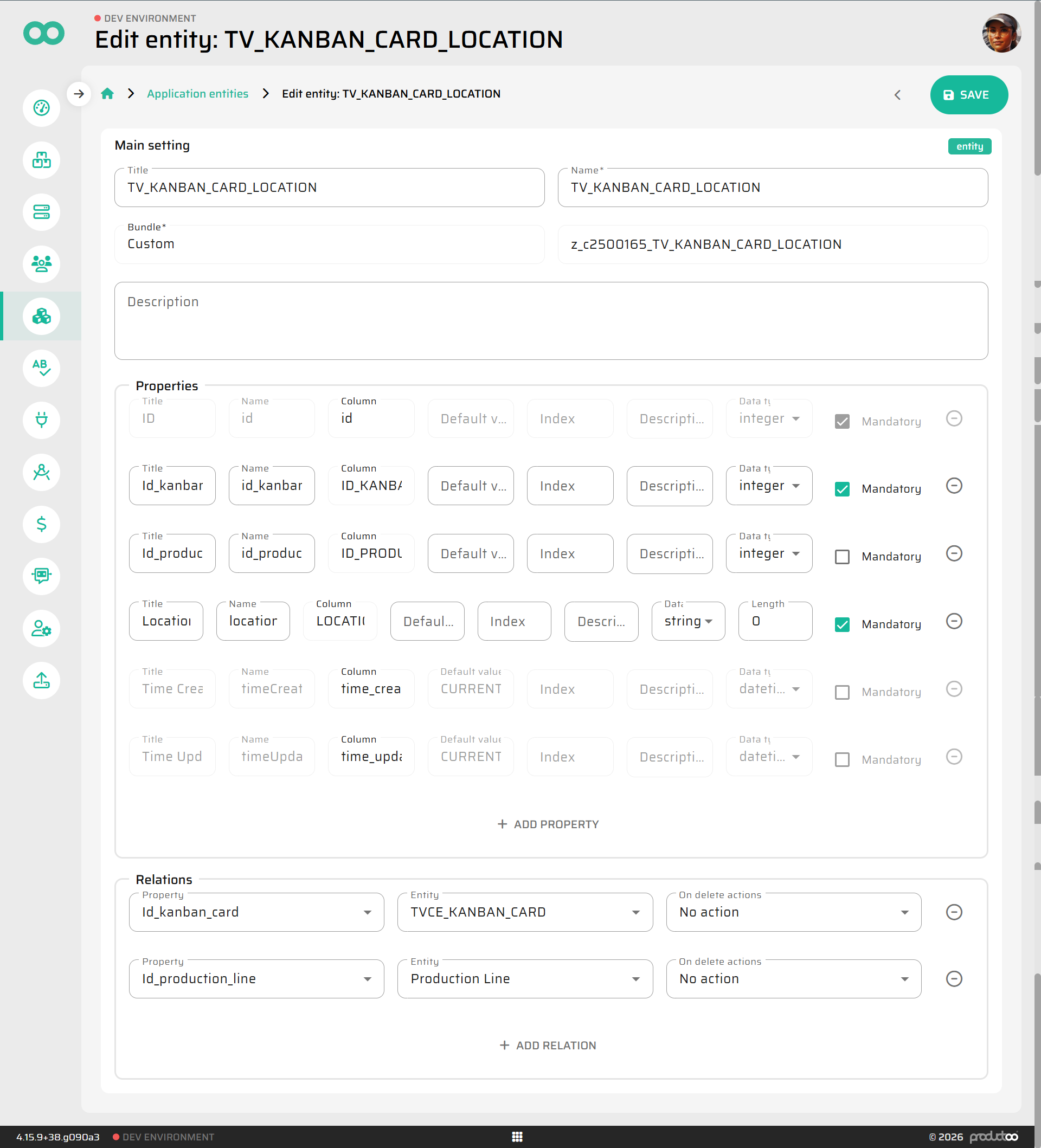
4. KANBAN_CARD_LOCATION
To know exactly where a card is at any given moment, we need a detailed log of every movement.
Properties to add:
Location(String) - e.g., "Launcher" or "Finished"Relations to add:
Id_kanban_card➔KANBAN_CARDId_production_line➔Production Line
Step 2: Creating a Custom View
In our UI, we will want to see everything at once: the card ID, its current location, and the first/last lines of the loop. Querying 4 different entities every time would be complicated.
Instead, we can create a Custom View (KANBAN_CARDS_VIEW) which joins all this data into one simple, readable table.
Go to Application Entities ➔ Custom Views.
Create a new view named
KANBAN_CARDS_VIEW.Paste the following SQL query to define the view (Note: Make sure to replace the table prefixes like
z_cc6db0b9_with the actual database names generated for your custom entities in your environment).
WITH kcl_last AS (
    SELECT * FROM (
        SELECT kcl.*, ROW_NUMBER() OVER (PARTITION BY kcl.id_kanban_card ORDER BY kcl.id DESC) AS rn
        FROM z_YOUR_PREFIX_KANBAN_CARD_LOCATION kcl
    ) WHERE rn = 1
),
kplr_agg AS (
    SELECT kplr.id_kanban_loop,
           COUNT(*) AS lines_count,
           MIN(kplr.position) AS min_position,
           MAX(kplr.position) AS max_position,
           MIN(kplr.id_production_line) KEEP (DENSE_RANK FIRST ORDER BY kplr.position ASC, kplr.id_production_line ASC) AS min_position_line_id,
           MIN(kplr.id_production_line) KEEP (DENSE_RANK LAST ORDER BY kplr.position ASC, kplr.id_production_line ASC) AS max_position_line_id
    FROM z_YOUR_PREFIX_KANBAN_PROD_LINE_REL kplr
    GROUP BY kplr.id_kanban_loop
),
base AS (
    SELECT
        kl.id AS kanban_loop_id,
        kl.id_material AS material_id,
        m.code AS material_code,
        kl.number_of_cards AS number_of_cards,
        kl.batch_size AS batch_size,
        kl.active AS active_loop,
        kc.id AS card_id,
        kc.id_status AS card_status_id,
        kc.cycle AS card_cycle,
        kcl_last.id AS last_location_id,
        kcl_last.location AS last_location,
        kcl_last.id_production_line AS current_production_line_id,
        pl_curr.code AS current_production_line_code,
        kcl_last.time_created AS last_location_time_created,
        kplr_agg.lines_count AS loop_lines_count,
        kplr_agg.min_position AS loop_min_position,
        pl_min.code AS loop_min_position_line_code,
        kplr_agg.max_position AS loop_max_position,
        pl_max.code AS loop_max_position_line_code,
        kplr_curr.position AS current_line_position
    FROM z_YOUR_PREFIX_KANBAN_LOOP kl
    JOIN z_YOUR_PREFIX_KANBAN_CARD kc ON kc.id_kanban_loop = kl.id
    LEFT JOIN material m ON m.id = kl.id_material
    LEFT JOIN kcl_last ON kcl_last.id_kanban_card = kc.id
    LEFT JOIN kplr_agg ON kplr_agg.id_kanban_loop = kl.id
    LEFT JOIN z_YOUR_PREFIX_KANBAN_PROD_LINE_REL kplr_curr ON kplr_curr.id_kanban_loop = kl.id AND kplr_curr.id_production_line = kcl_last.id_production_line
    LEFT JOIN production_line pl_curr ON pl_curr.id = kcl_last.id_production_line
    LEFT JOIN production_line pl_min ON pl_min.id = kplr_agg.min_position_line_id
    LEFT JOIN production_line pl_max ON pl_max.id = kplr_agg.max_position_line_id
)
SELECT ROWNUM AS id, base.* FROM base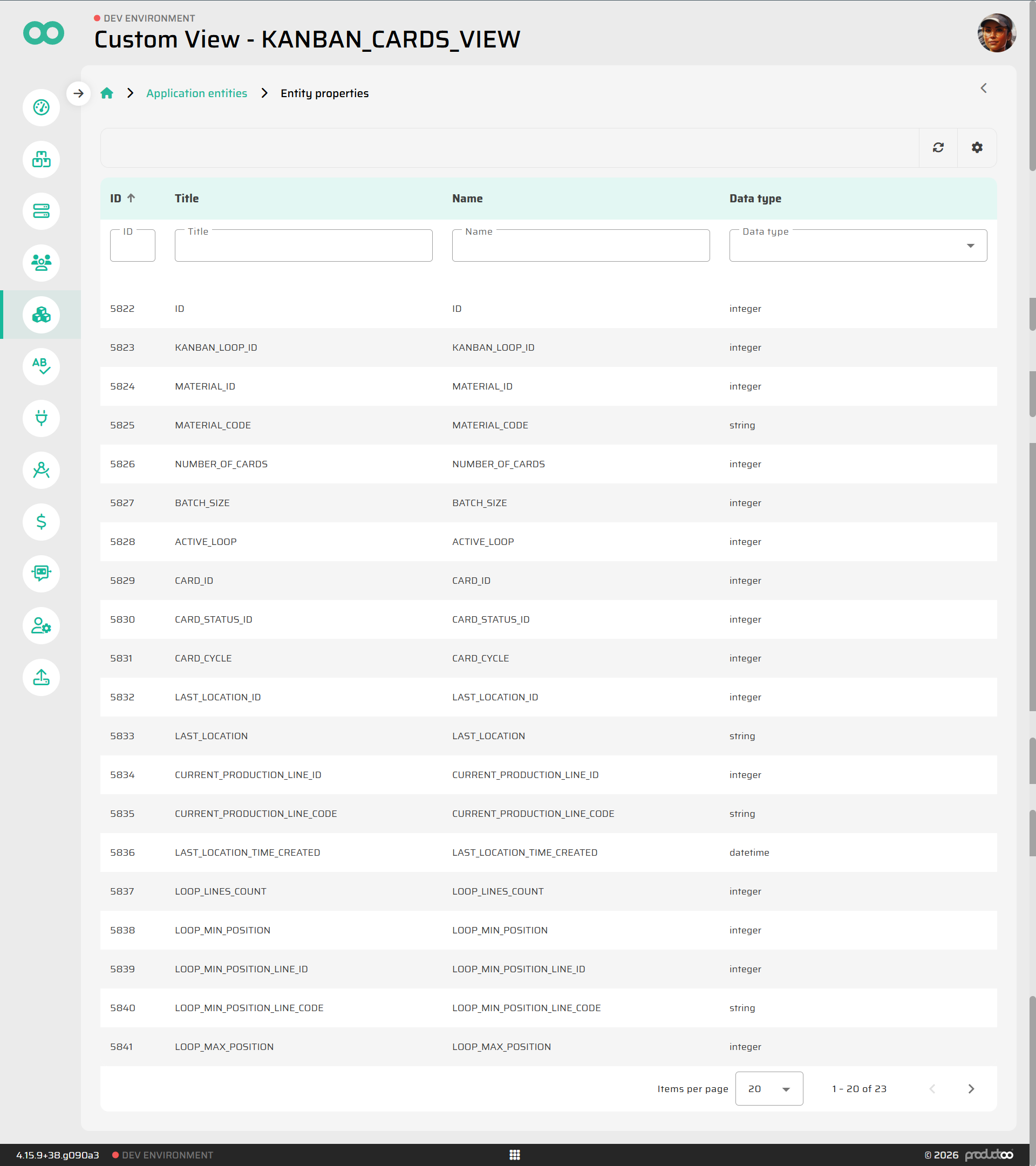
Success!
Your data foundation is ready. You now have a place to store loops, routings, cards, and their locations.
Next, we will give this data some life by designing the business rules. Let's move on to ➔ Part 2: Designing Process Logic (Flow Builder)