
Import Attendance Data from CSV
To start using the Time and Attendance module, you first need to load your base data — operators, cost centers, calendars, and skill mappings — into Productoo.
This data defines how people, work centers, and shifts are connected and ensures correct attendance tracking and reporting.
All imports are handled through the Configuration Studio → Integrations interface. The import process is visual, no-code, and can be repeated anytime to update or extend existing data.
1. Prepare Your Source Data
Before importing, open and duplicate the provided data template:
https://docs.google.com/spreadsheets/d/1Cvzgm06WLrsHc2zarWZ42fT-gipxMErn2rKoJNFdyiI/copy
The spreadsheet contains all required entities and column descriptions for Time and Attendance data, including example values and the correct recommended order in which the data should be imported.

Tip: You can fill the spreadsheet directly as your working file. When ready, export each tab as a CSV file via
File → Export → Comma-separated values (.csv)
2. Create a New Import in Configuration Studio
Open Configuration Studio → Integrations → Add Import.
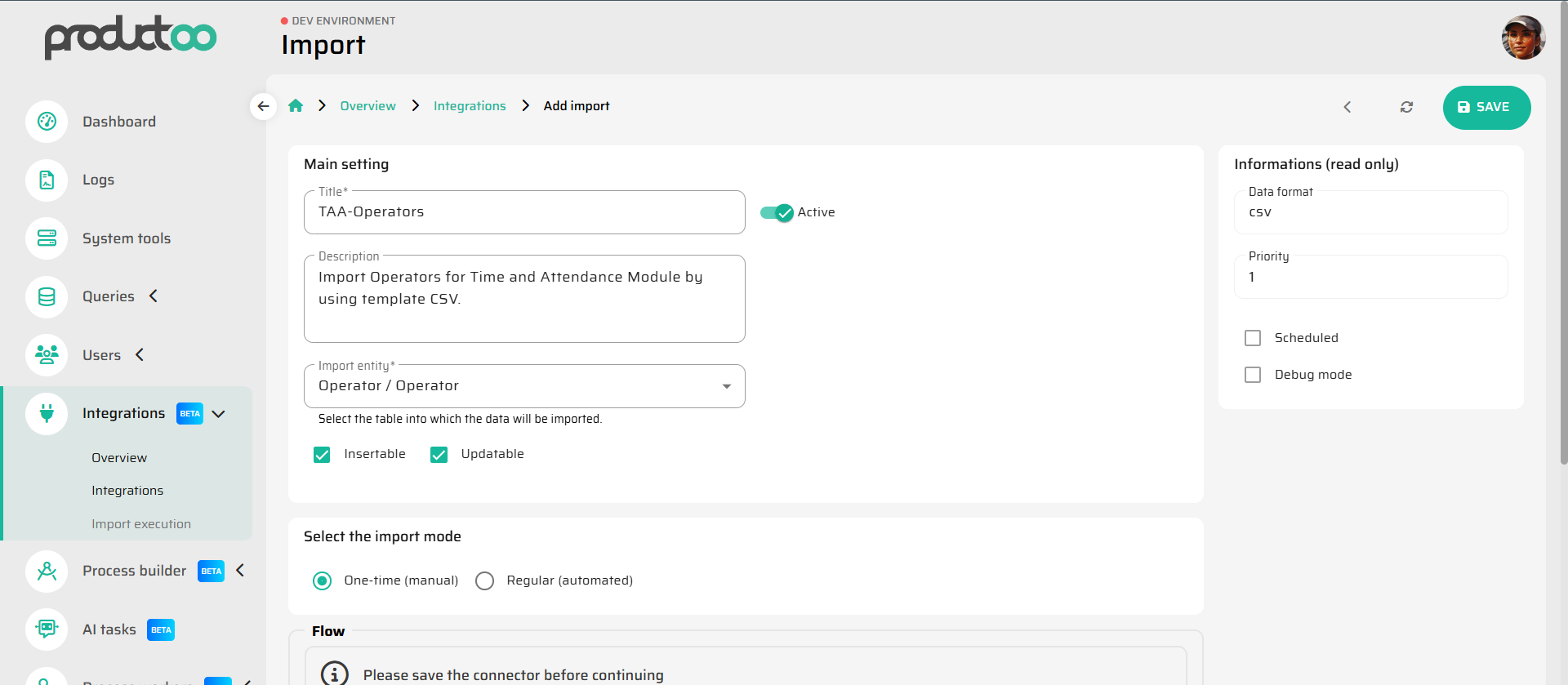
Create a new import configuration (see screenshot 1 below):
Title:
TAA-OperatorsDescription: Import Operators for Time and Attendance Module using template CSV
Import entity:
Operator / OperatorCheck Insertable and Updatable options.
Leave “Scheduled” and “Debug mode” unchecked unless running automated imports.
Click Save to continue.
3. Map CSV Columns to Database Fields
Once saved, open the Payload Mapping dialog. This is where you visually connect your CSV columns to Productoo database fields. The template contains 1:1 entity and column naming, therefore the imports is straightforward 1:1 connecting the fields.
Steps:
Click Upload File and select your prepared
.csvfile.Productoo will automatically detect column names.
Use the drag-and-drop visual mapping editor to connect fields.
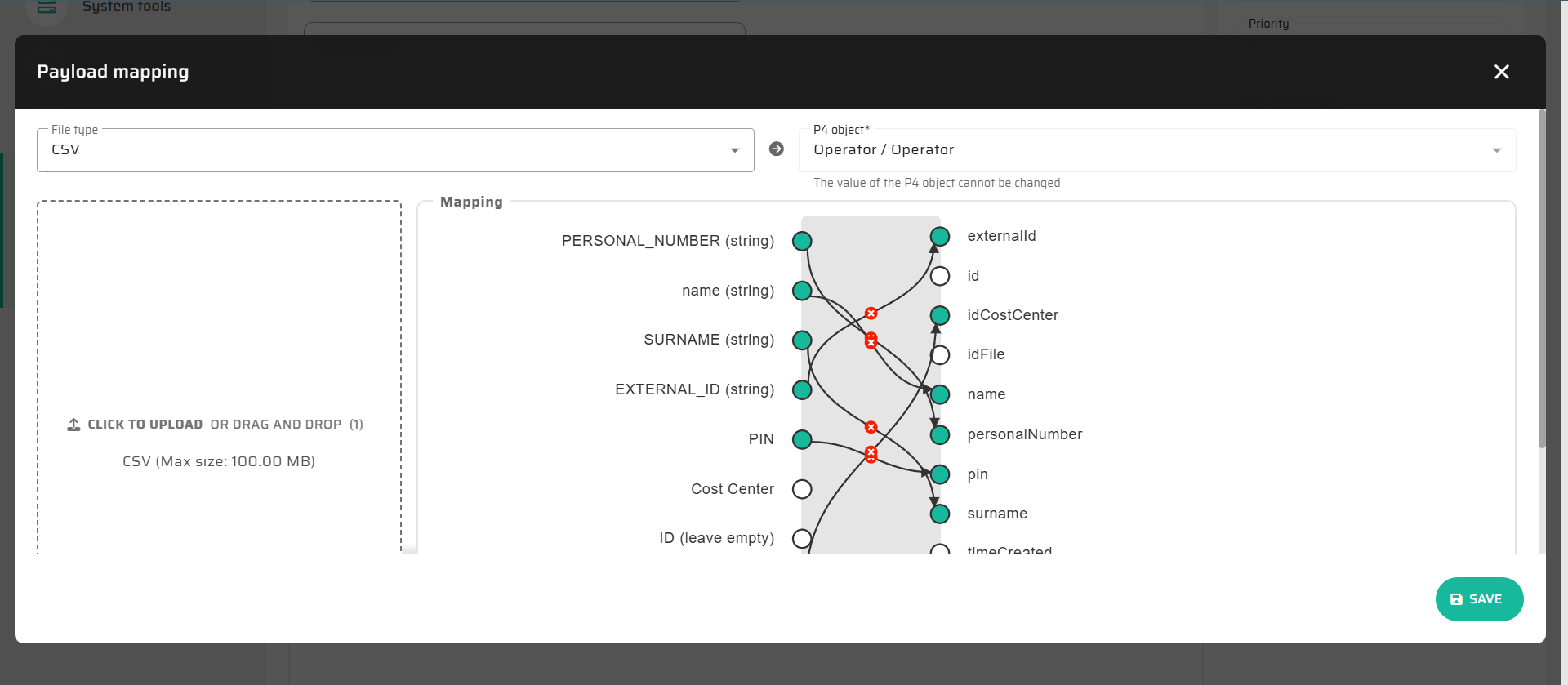
Once all fields are mapped, click Save to store the mapping.
4. Execute the Import
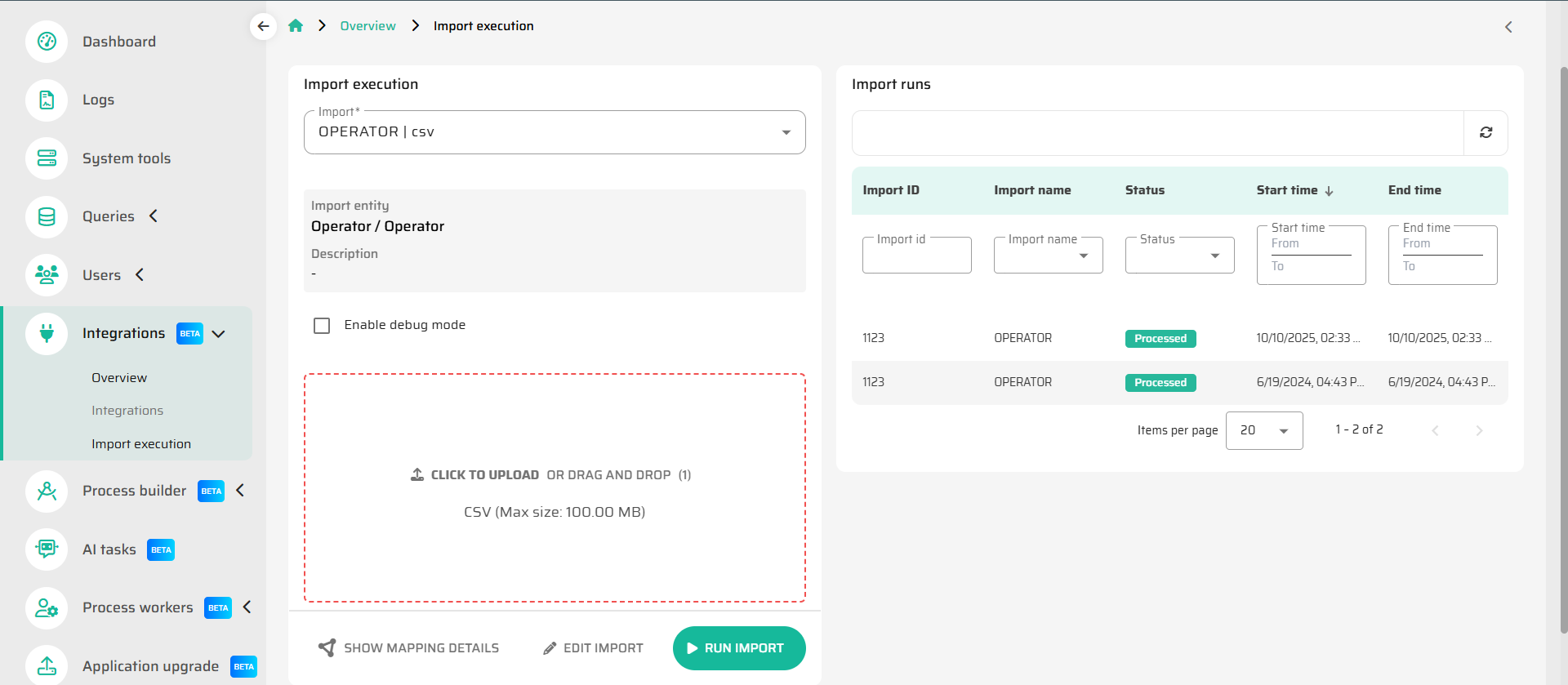
Navigate to Integrations → Import Execution.
Select the previously created import (e.g.,
TAA-Operators).Upload the correct
.csvfile (Operators, Cost Centers, or Skills).Click Run Import.
The system will process the file and display its status as Processed when completed.Review the log output to confirm success and note any validation messages.
Follow the import order defined in the template for consistent data linking. This ensures that all relations (e.g., Operator → Cost Center, or Skill → Operator) are valid at the time of import.
5. Validate Data in Parametrization Module
After successful import:
Go to Parametrization → Operators / Calendars / Skills.
Open each section to verify that data appears correctly:
Operators are visible and assigned to correct cost centers.
Calendars contain the right shift definitions.
Skill Matrix displays correct qualification links.
Next Step
Proceed to configure your production calendars and working schedules: Create and Configure Shift Calendars