
Calendar templates
Calendar Templates define reusable scheduling frameworks that organize Shift Types into operational timelines.
While Shift Types describe how long and when during the day each shift occurs, Calendar Templates define how these shifts are arranged over a given period — for example, rotating day and night shifts every week or repeating a weekly pattern across multiple lines.
The primary goal of Calendar Templates is to:
Standardize shift schedules across production lines.
Simplify calendar generation for new lines or operators.
Provide a single editable source that can be reused and assigned throughout the system.
Once finalized, Calendar Templates can be assigned to production lines to ensure uniformity of working rhythms
Accessing Calendar Templates
To create or modify Calendar Templates, go to:
Parametrization → Calendars → Calendars
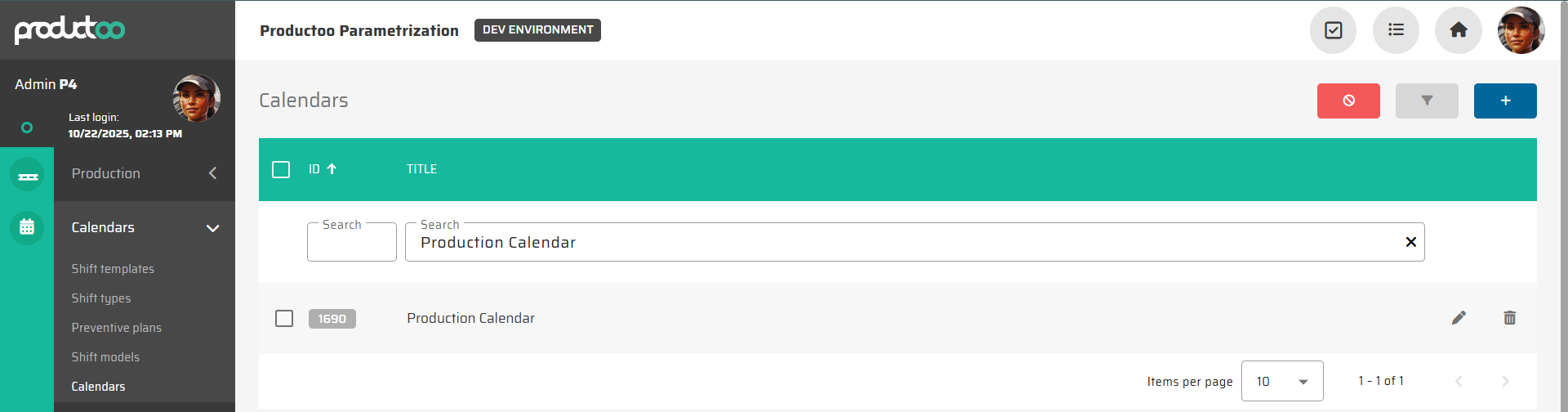
This view lists all configured templates with the following sortable and filterable columns:
ID
Title
Description
Planned time range (weeks)
Status
The table supports:
Add new – creates a new calendar template.
Edit – opens an existing template for modification.
Duplicate – copies an existing template (useful for similar shift rotations).
Delete – permanently removes unused templates.
Calendar Template Fields
Each Calendar Template defines the main metadata and scheduling parameters that control how it generates shift events.
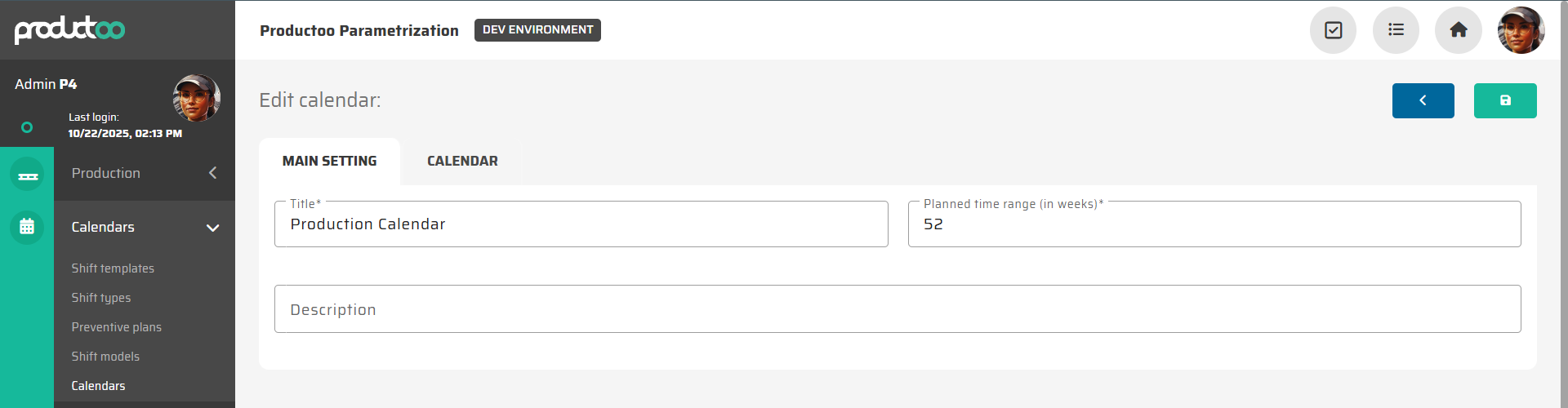
Parameter name | Limitations | Possible values | Description |
|---|---|---|---|
Title* | 100 chars | Free text | Descriptive name of the calendar (e.g., Production Calendar 2025). Appears throughout the system in selection dialogs and reports. |
Description | 255 chars | Free text | Optional internal note explaining the calendar’s purpose or scope (e.g., Standard A/B rotation for plant A). |
Planned time range (weeks)* | Integer | 1–104 | Defines how many weeks ahead the system will pre-generate shift events. Default is 52 weeks (1 year). Shorter ranges (e.g., 10 weeks) reduce data load and speed up visualization. |
(fields marked with an asterisk are mandatory)
4. Adding Shift Events to a Calendar Template
Once a Calendar Template is created, you can populate it with shift events based on predefined Shift Types.
Open the Calendar Template and switch to the Calendar tab.
Use the Add New Event button or click directly on the timeline.
Fill in the event details as shown in the dialog
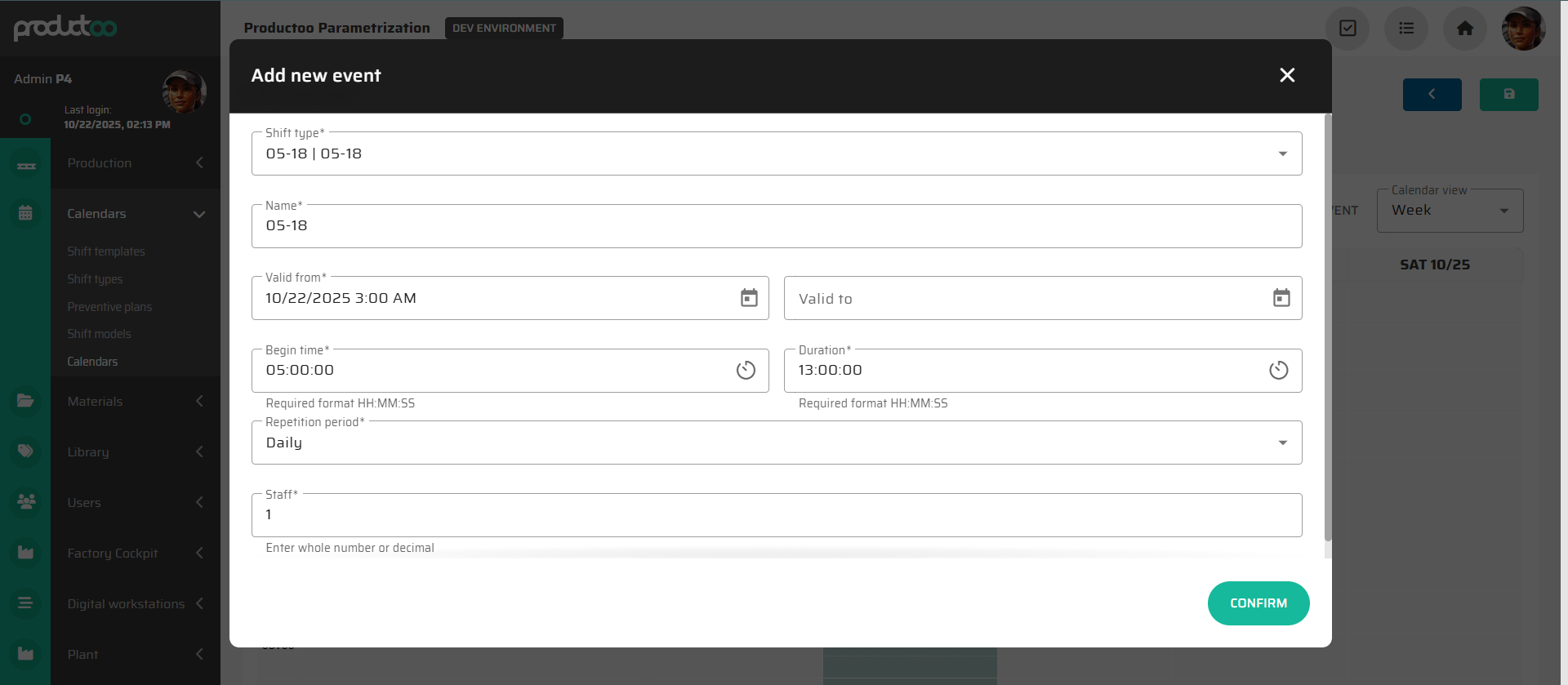
Field | Possible Values | Description |
|---|---|---|
Shift Type* | Dropdown of existing Shift Types | Selects the time pattern to apply (e.g., Morning Shift). |
Name | Auto-filled text | Defaults to the selected Shift Type name, but can be manually edited for custom labeling. |
Valid From / Valid To* | Date range | Defines the active period during which the event repeats. |
Begin Time | HH:MM:SS | Automatically filled from the Shift Type; editable if custom timing is required. |
Duration | HH:MM:SS | Pre-filled from the Shift Type; can be adjusted for exceptional shifts. |
Repetition Period | None / Daily / Weekly / Biweekly | Controls recurrence frequency of the shift. “None” creates a one-time event. |
Staff | Integer (default: 1) | Specifies number of planned operators for the shift. Impacts coverage and staffing validation. |
Click Confirm to save the event — it will immediately appear in the calendar visualization for the selected day
Calendar Visualization and Editing
Once populated, the Calendar Template provides two visualization modes: Day / Week / Month / Year
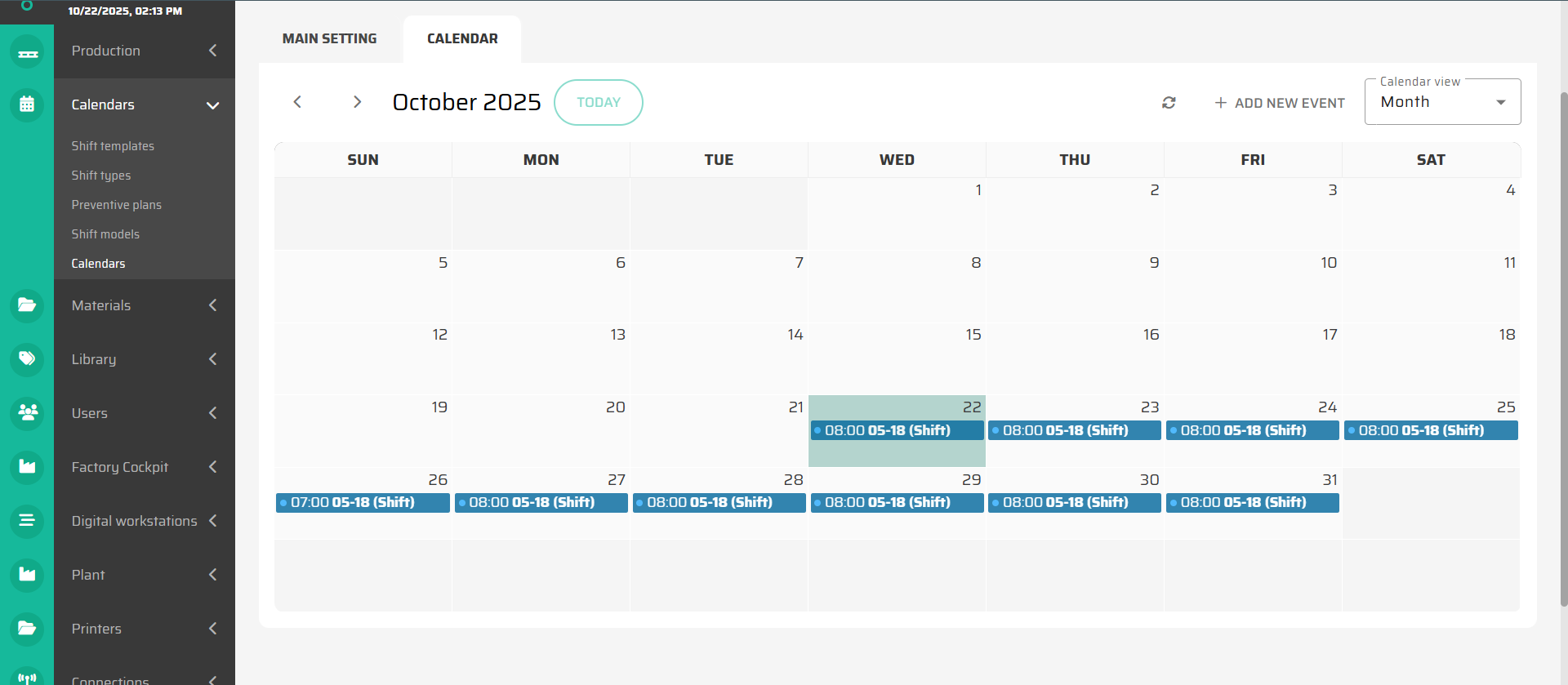
Each event block shows:
Start and end time.
Shift Code.
Supported interactions:
Click an event to open its detail dialog for editing.
Drag and drop to move an event to a different day.
Validation and Best Practices
Before finalizing a Calendar Template:
Verify all Shift Types appear within the defined date range.
Ensure there are no overlapping or missing shifts.
Check staff coverage corresponds to actual operator availability.
Validate that overnight shifts correctly roll over to the next day.
Use shorter planning ranges (e.g., 10 weeks) for heavy environments to optimize performance.
Once validated, the calendar becomes the authoritative timeline for Production Planning, Time & Attendance, operator assignment and other modules
Example Use Cases
Fixed Weekly Pattern:
Morning / Afternoon / Night shifts repeating weekly.
Used in stable, high-volume production environments.
Rotational Pattern:
Two-week rotation where each operator group alternates between Day and Night shifts.
Custom Maintenance Calendar:
Non-repetitive events for maintenance, training, or audits.