
Shift Types
Shift Types define standardized working patterns that can be reused across production calendars and lines.
Each Shift Type represents a time template describing when a shift begins, how long it lasts, and which breaks occur within it.
Once created, these Shift Types are referenced when building Shift Calendars — ensuring consistent scheduling and reducing repetitive input.
Examples include:
Morning Shift (06:00 – 14:00)
Afternoon Shift (14:00 – 22:00)
Night Shift (22:00 – 06:00)
2. Accessing Shift Type Settings
To create or modify Shift Types, navigate to:
Parametrization → Calendars → Shift Types
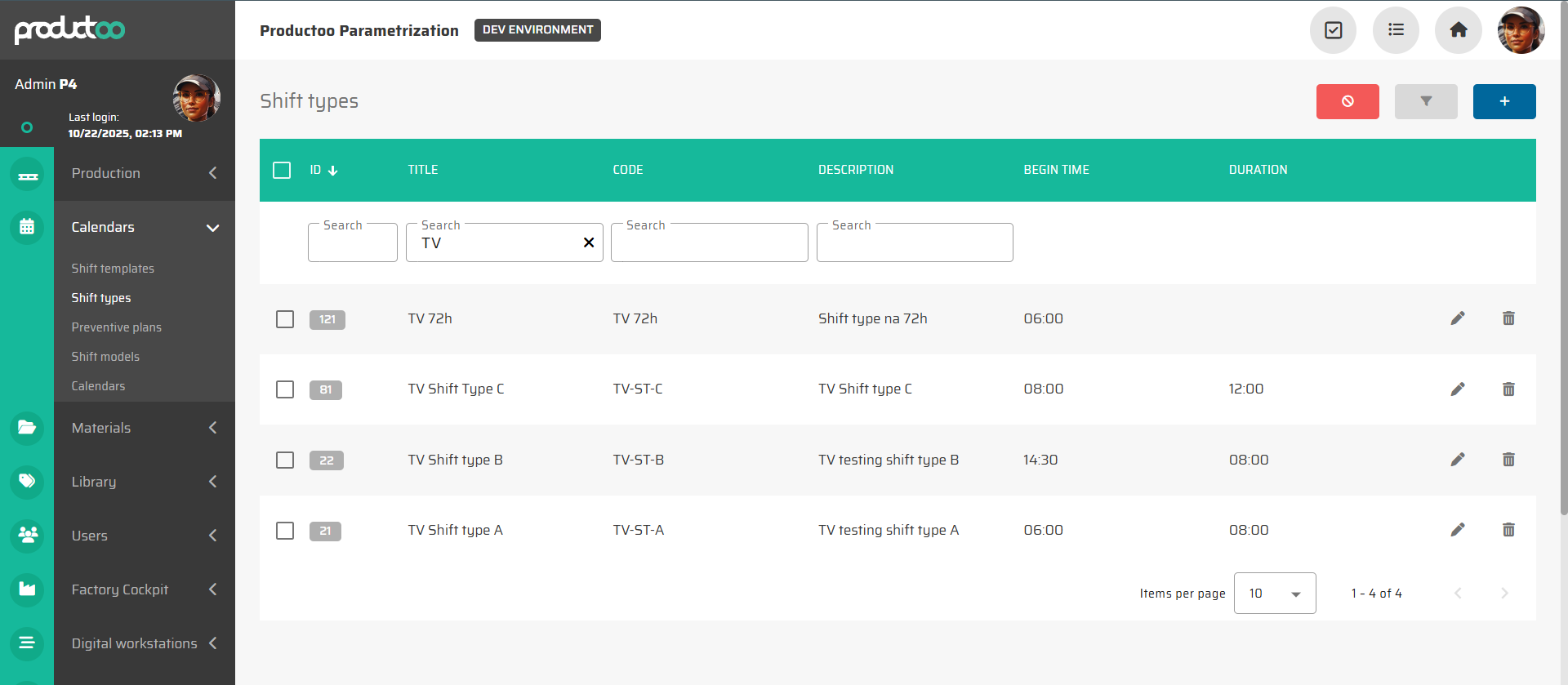
Here, all existing Shift Types are listed in a table that can be filtered by:
ID
Title
Code
Description
Begin Time
Duration
Use the top-right buttons to:
Add new – create a new Shift Type.
Edit – modify an existing definition.
Duplicate – copy an existing setup to create a similar one faster.
Delete – remove unused Shift Types.
3. Shift Type Fields
Each Shift Type contains several core parameters.
These define how the shift will behave when applied in calendars.
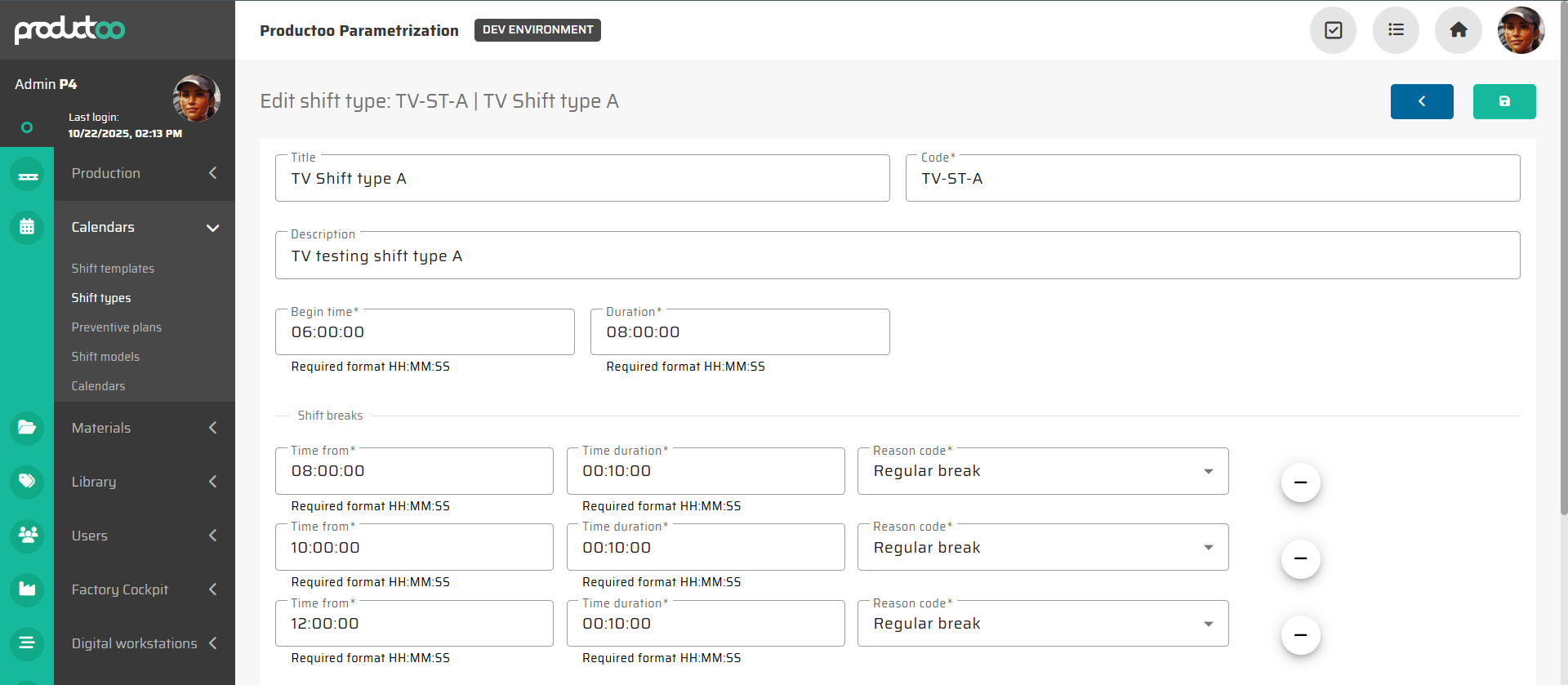
Parameter name | Limitations | Possible values | Description |
|---|---|---|---|
Title | 100 characters | Free text | Descriptive name of the shift type (e.g., Morning Shift). It is displayed throughout the system in shift listings and calendars. |
Code* | 50 characters | Free text | Short technical identifier or abbreviation (e.g., A-06-14). Used in exports, reporting, and API integration. |
Description | 255 characters | Free text | Optional text describing purpose or specific use (e.g., Standard day shift for Line A). |
Begin Time* | HH:MM:SS | 00:00:00–23:59:59 | The exact starting time of the shift. Determines when the shift event is generated in the calendar. |
Duration* | HH:MM:SS | 00:01:00–23:59:59 | Total planned length of the shift, including breaks. The system calculates the end time automatically from this value. |
(fields marked with an asterisk are mandatory)
4. Shift Breaks Configuration
Shift Breaks define planned pauses within a shift. They are optional but recommended for accurate production time tracking and performance reporting.
To configure breaks:
In the Shift Type detail view, click Add Break.
Fill in the following fields:
Parameter name | Limitations | Possible values | Description |
|---|---|---|---|
Time From* | HH:MM:SS | Within shift duration | Start time of the break, relative to the shift’s Begin Time. |
Duration* | HH:MM:SS | Positive time value | Length of the break. |
Reason Code* | Defined values | Reason codes under “Production break” category | Identifies the nature of the break (e.g., Lunch break, Operator rest, Technical pause). |
Multiple breaks can be defined for a single Shift Type.
Each break reduces the productive time of the shift accordingly in downstream modules such as Time & Attendance or OEE analytics
5. Typical Use Cases
Standardization Across Lines
Defining Shift Types ensures consistent working patterns across production lines, minimizing configuration errors.Simplified Calendar Creation
Calendars reference Shift Types instead of manually entering start and end times for each day.Uniform Reporting
KPIs like attendance or productivity are aggregated per Shift Type, enabling comparison between different lines or plants.Flexible Adjustments
Editing a Shift Type (e.g., changing duration from 08:00 to 07:45) will automatically propagate to future calendar events created from this template.
6. Recommended Naming Convention
To ensure clarity and maintainability, use a structured naming pattern:
Title:
<Shift Name> (<Duration>)
e.g., Morning Shift (8h)Code:
<Plant/Line>-<Start>-<End>
e.g., A-06-14, B-22-06
This helps operators and planners instantly recognize timing and applicability in calendar overviews.