
Move Kanban Cards between Lines
Our Kanban cards are initialized and sitting in the Launcher. But a Kanban board is only useful if the cards actually move!
In this logic step, we need to build the process that happen when a user clicks a button on the UI. The most important interaction is moving a card from one production line to the next.
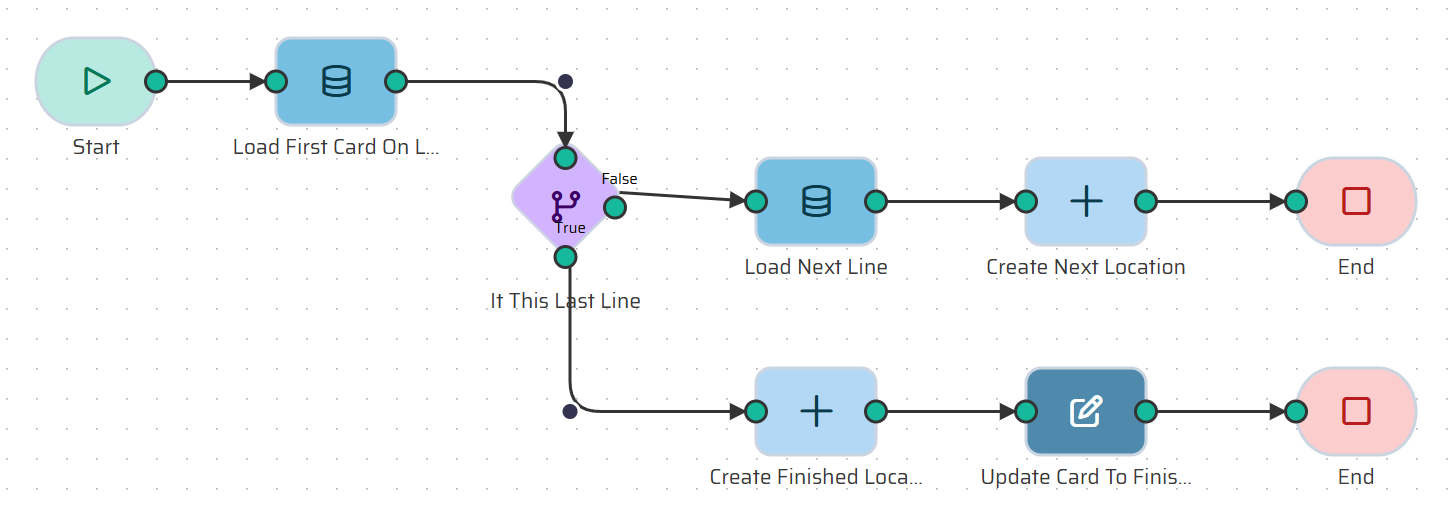
Navigate to Configuration Studio ➔ Process Builder ➔ Flows and create a new flow named Card Transfer Between Lines. It might look something like this in the end.
Step 1: The Start Node
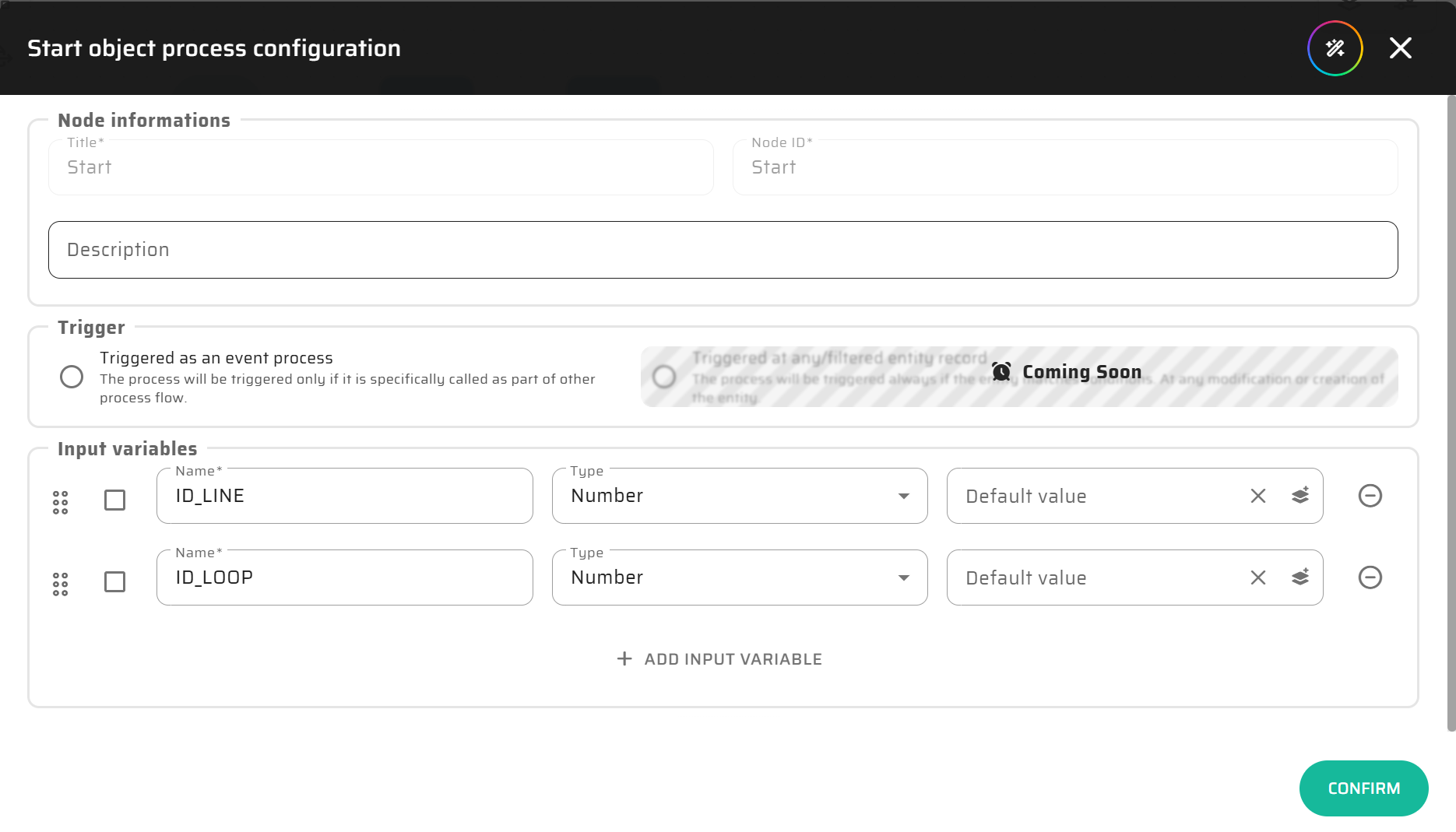
To move a card, the UI needs to tell our flow two things: which loop we are working with, and which line the card is currently on.
Add Input Variables:
KANBAN_LOOP_ID(Type: Number) andCURRENT_LINE_ID(Type: Number).
Step 2: Load the First Card (Using Our Custom View)
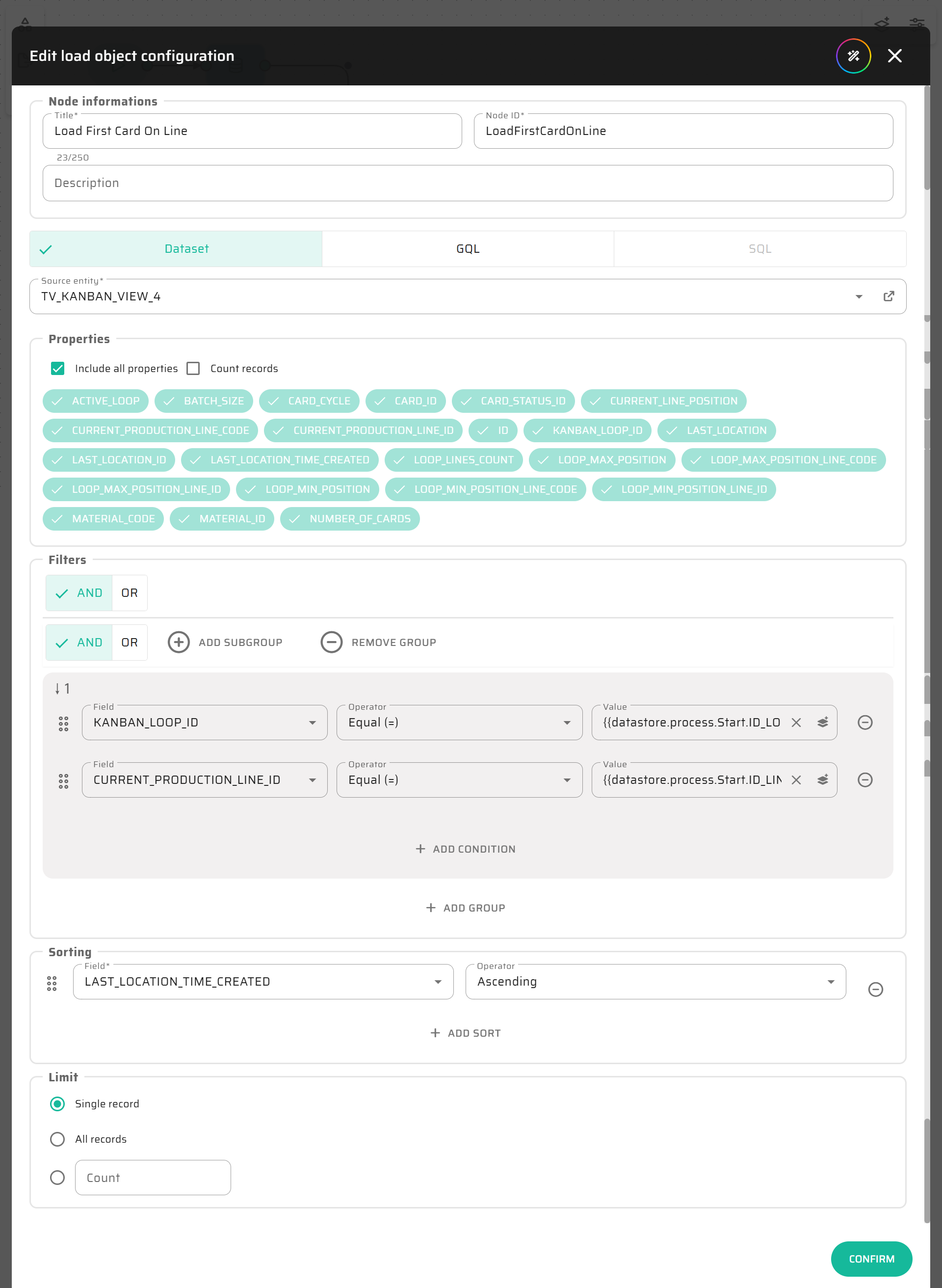
We need to find the oldest card currently sitting on this specific production line. Instead of doing complex database joins, we will simply use the Custom View we created in Part 1.
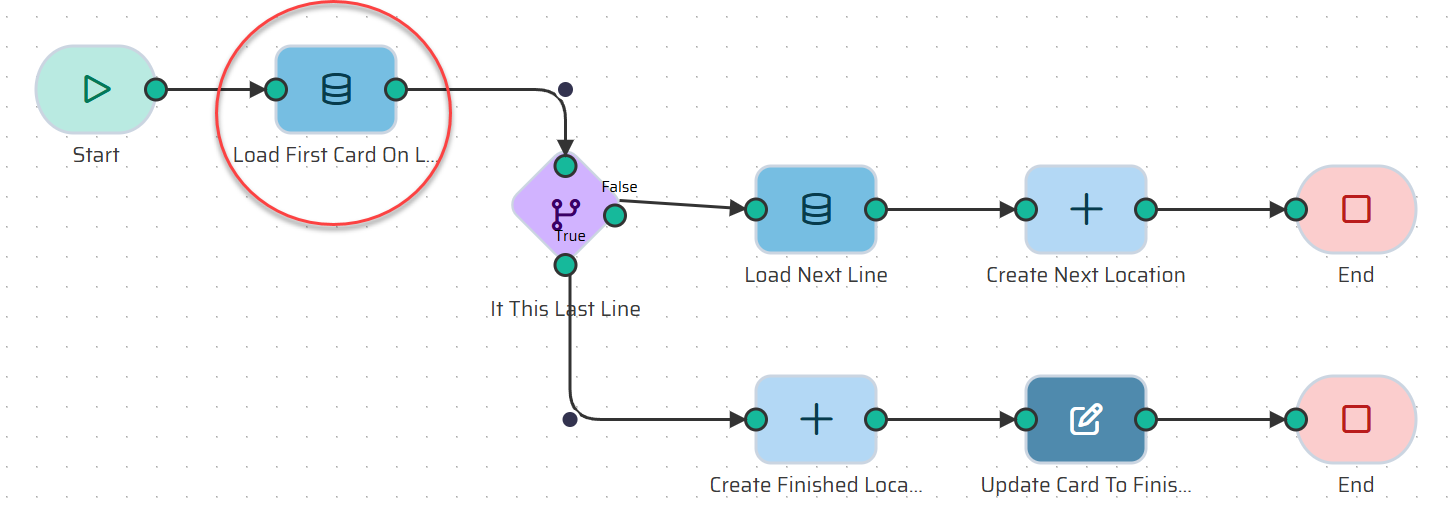
Add a Load Object node and name it Load First Card On Line.
Entity: Select
KANBAN_CARDS_VIEW(Your custom view).Filters: *
KANBAN_LOOP_IDEquals{{datastore.process.Start.KANBAN_LOOP_ID}}.CURRENT_PRODUCTION_LINE_IDEquals{{datastore.process.Start.CURRENT_LINE_ID}}.
Sorting: Sort by
LAST_LOCATION_TIME_CREATEDAscending (this ensures we get the card that has been waiting the longest).Limit: Select
Single record.
Step 3: Where Does It Go Next? (The If Node)
A card on a line can either move to the next line, or, if it is on the last line, it moves to Finished. Let's evaluate this.
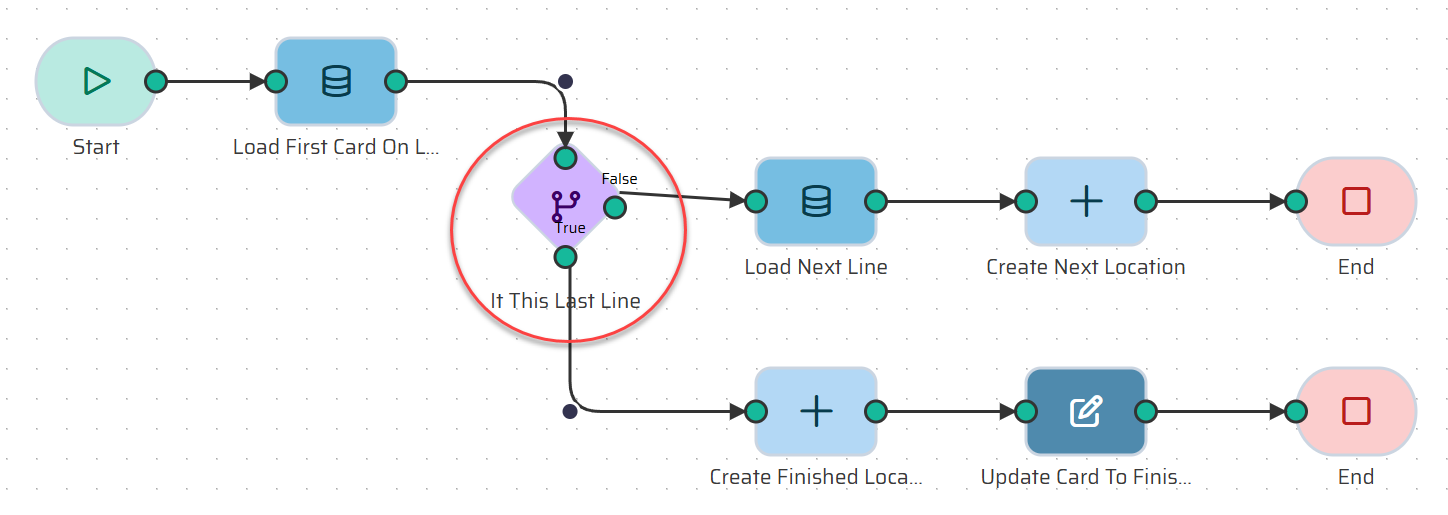
Add an If node named If This Last Line.
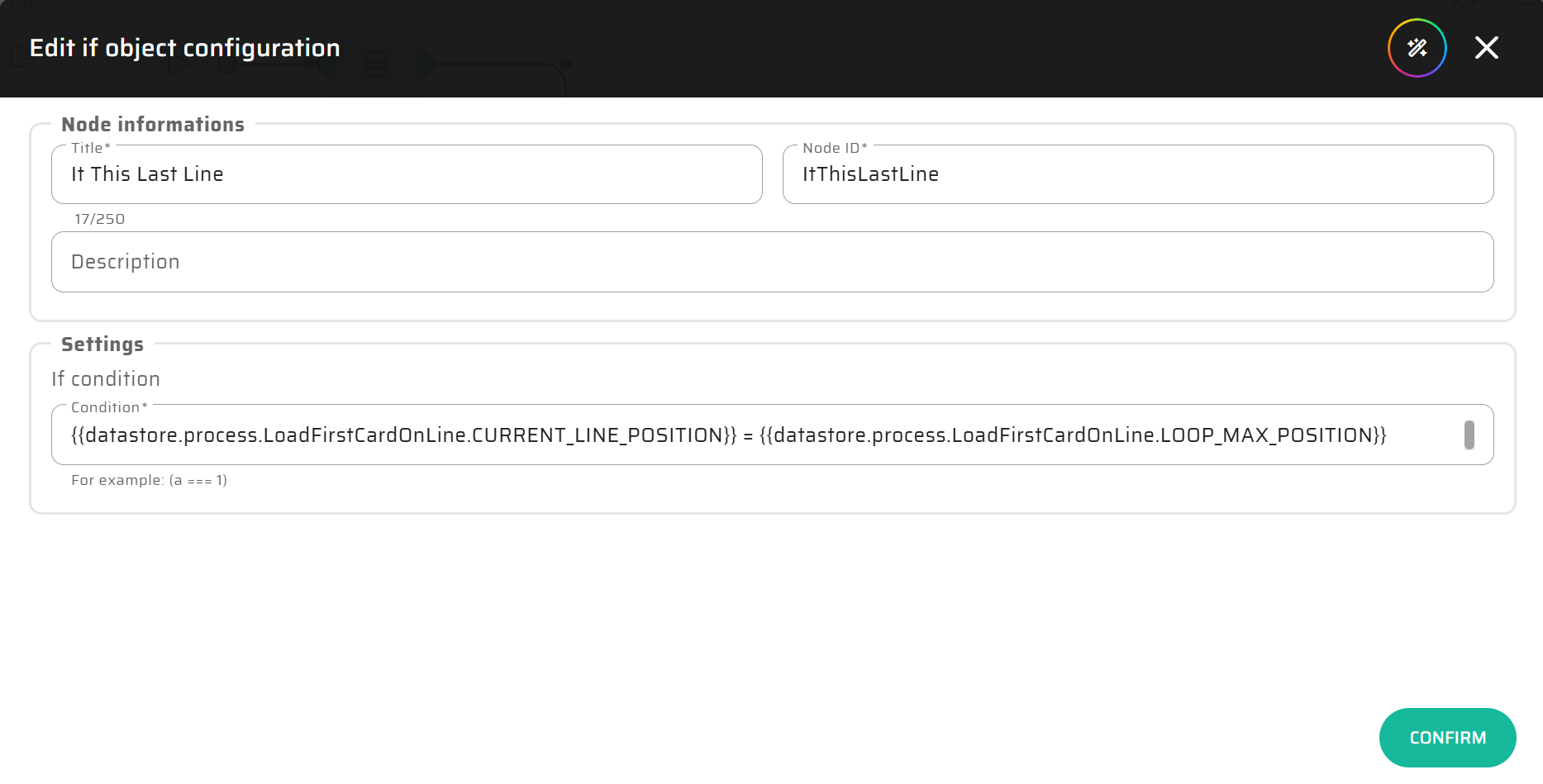
Condition: We will compare the card's current position with the loop's maximum position (both conveniently available in our Custom View!).
{{datastore.process.LoadFirstCardOnLine.CURRENT_LINE_POSITION}} == {{datastore.process.LoadFirstCardOnLine.LOOP_MAX_POSITION}}.
Step 4: The True Branch (Move to Finished)
If the condition is True, the card is done! We need to log its new location and update its status.
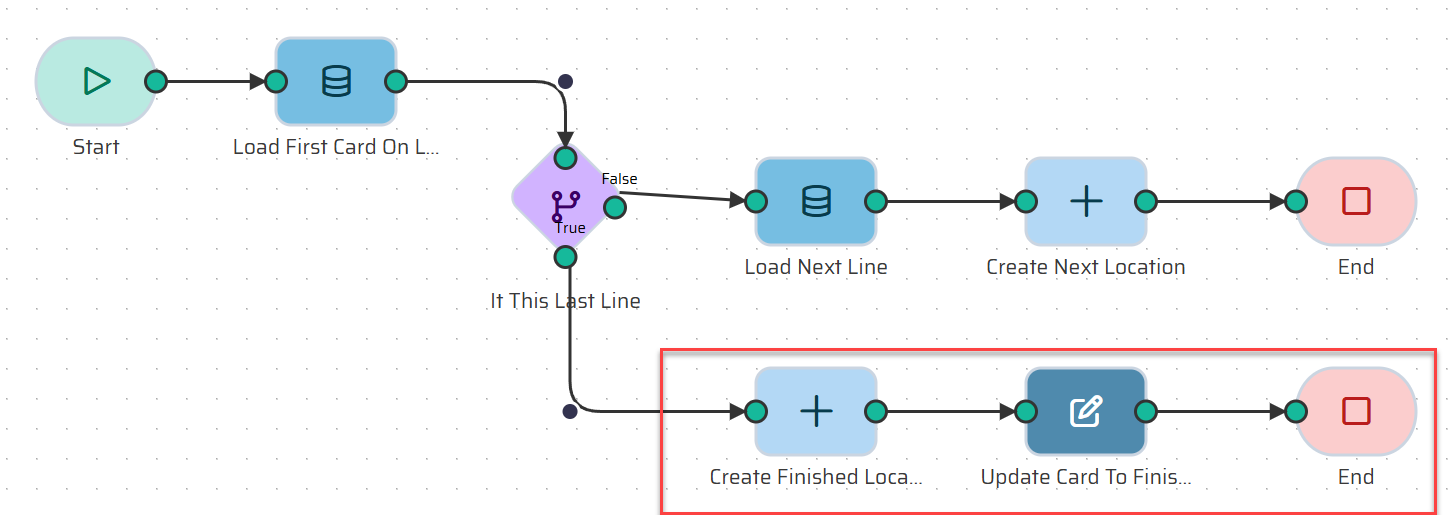
Create Finished Location: Add a Create Object node.
Entity:
KANBAN_CARD_LOCATION.Id_kanban_card:
{{datastore.process.LoadFirstCardOnLine.CARD_ID}}.Location: Static value
Finished.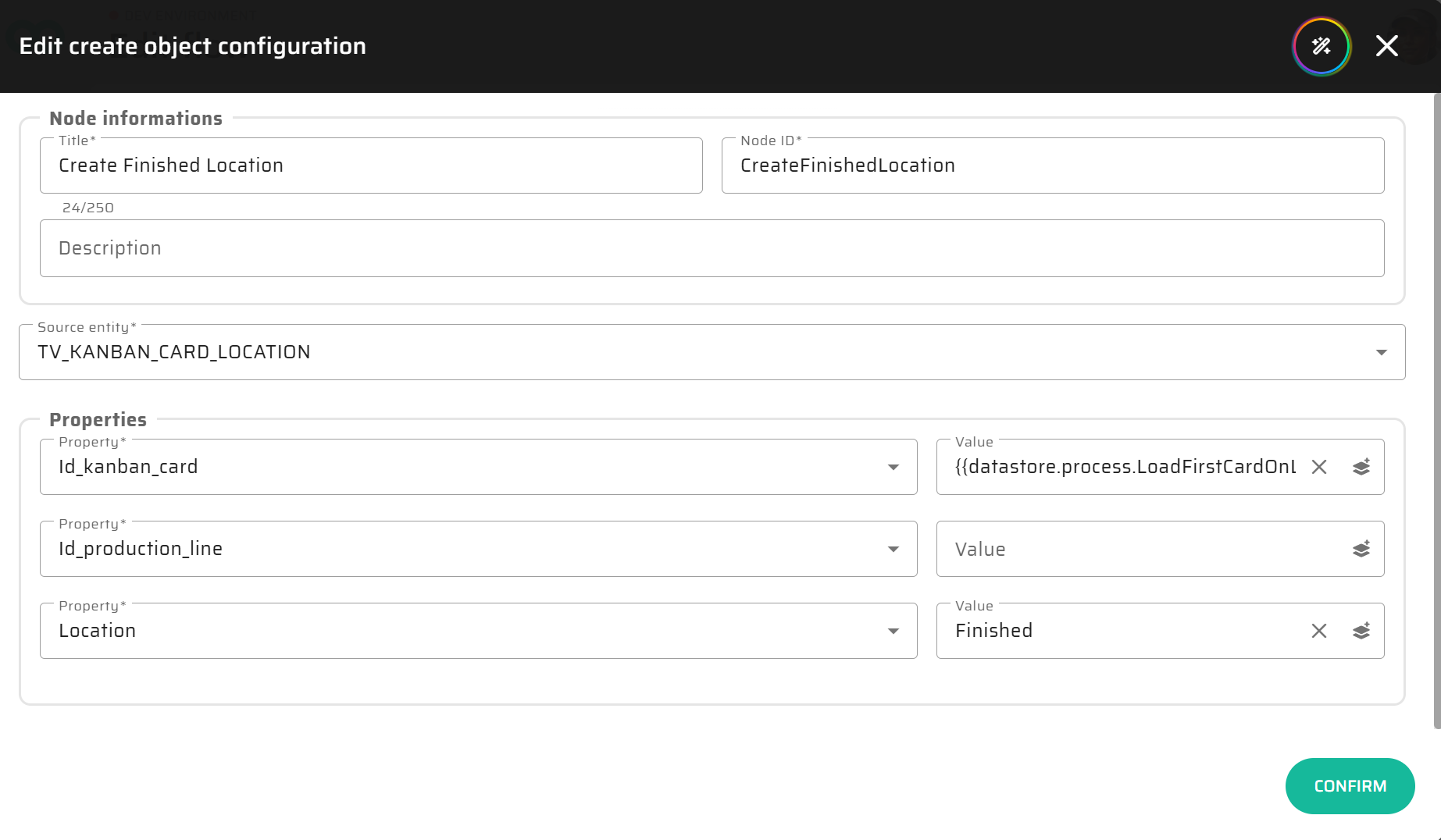
Update Card To Finished: Add an Update Object node. Unlike the Create node, the Update node only changes specific fields of an existing record.
Entity:
KANBAN_CARD.Properties to update:
id_status=2(or whatever your "Finished" status ID is).Filters:
idEquals{{datastore.process.LoadFirstCardOnLine.CARD_ID}}.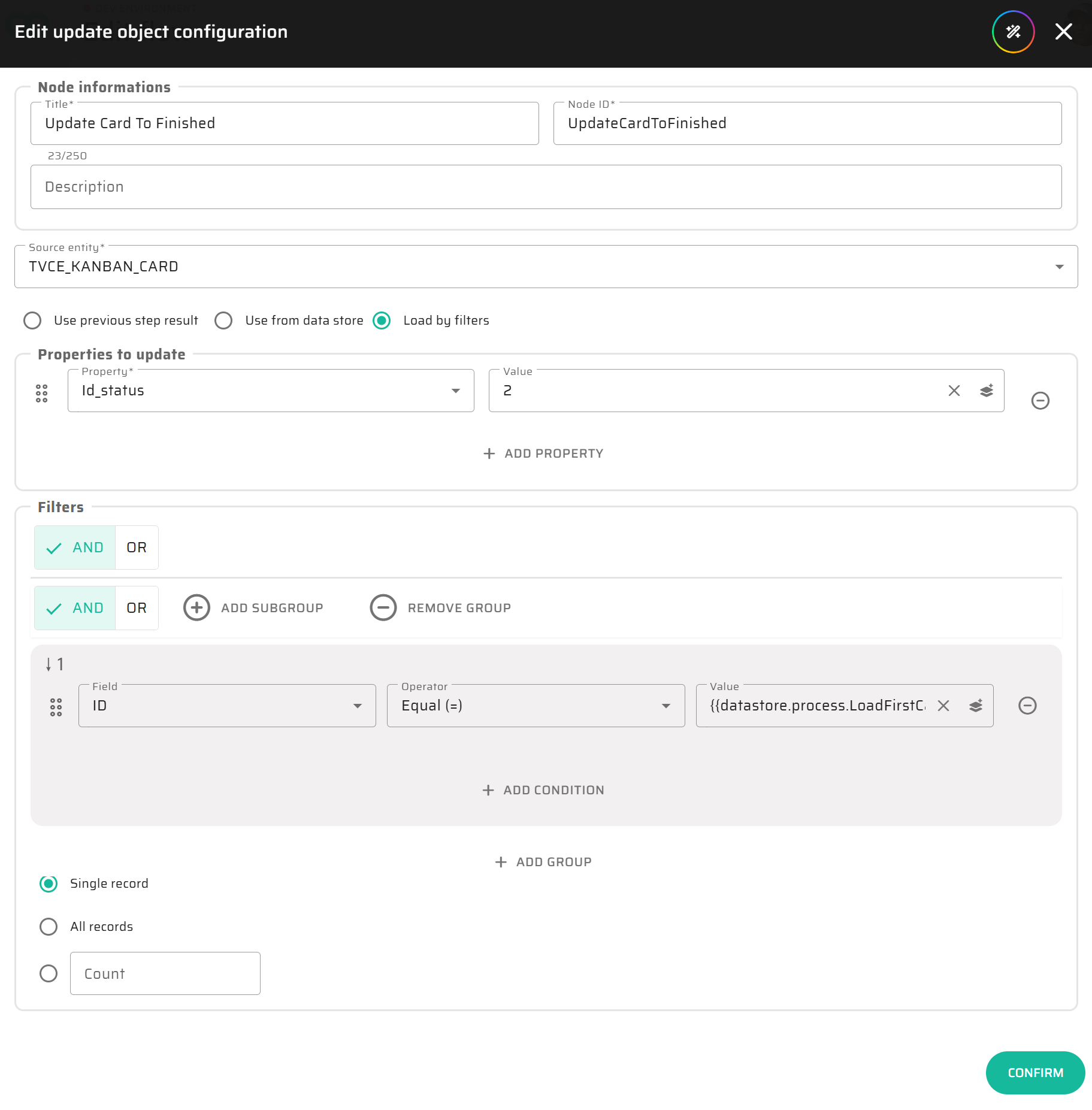
Connect this to an End node.
Step 5: The False Branch (Move to Next Line)
If the condition is False, we must find the next line and move the card there.
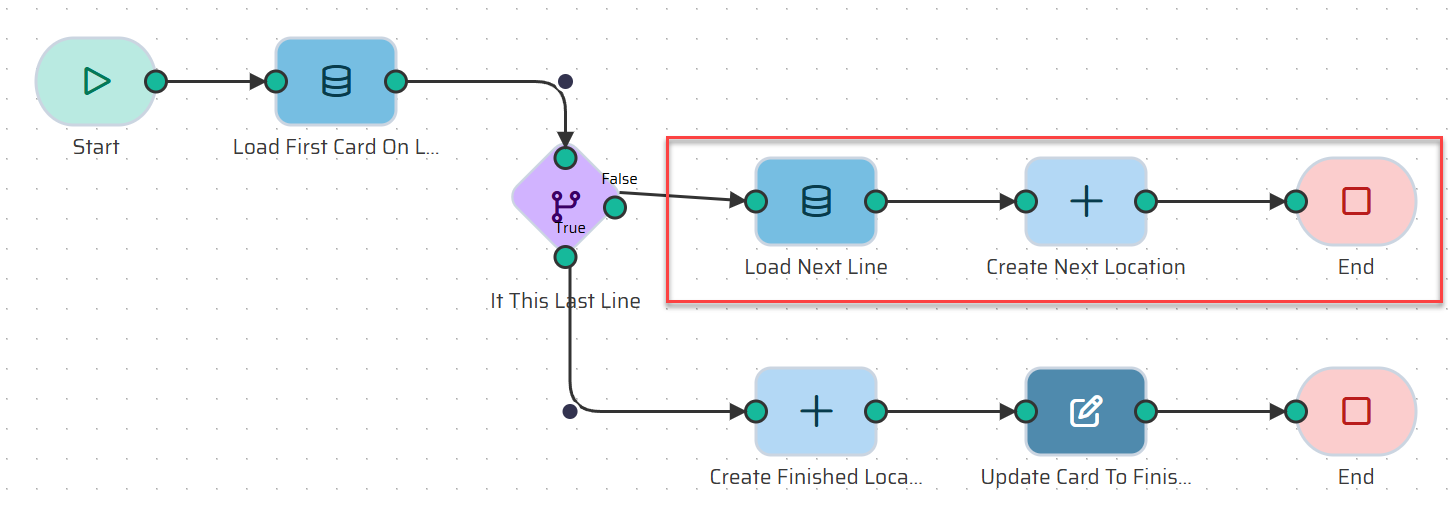
Load Next Line: Add a Load Object node connected to the False port.
Entity:
KANBAN_PROD_LINE_REL.Filters:
Kanban LoopEquals our Start variable, ANDPositionEqualsadd({{datastore.process.LoadFirstCardOnLine.CURRENT_LINE_POSITION}}, 1).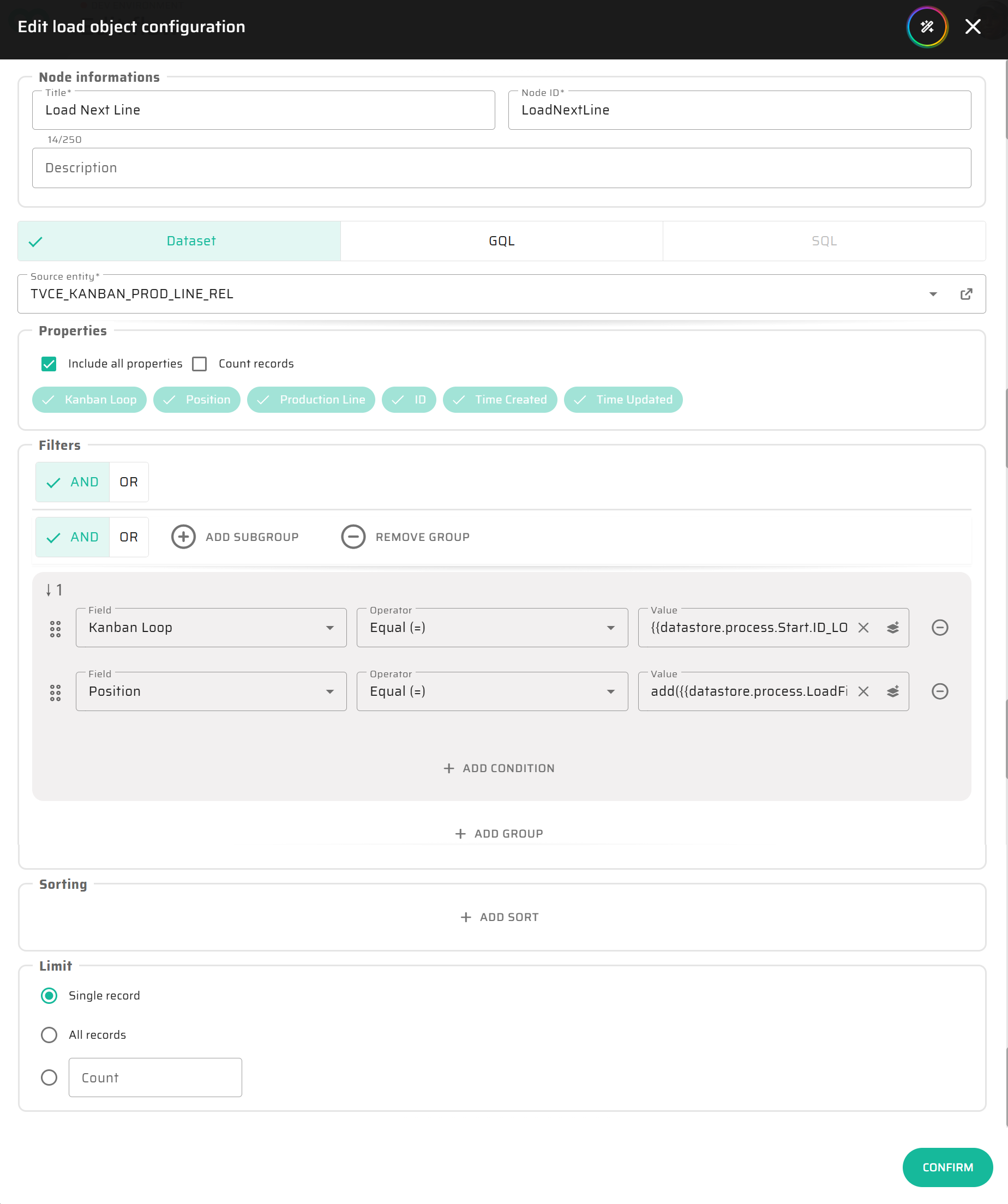
Create Next Location: Add a Create Object node.
Entity:
KANBAN_CARD_LOCATION.Location: We can leave this empty or put "In Progress".
Id_production_line:
{{datastore.process.LoadNextLine.ProductionLine}}.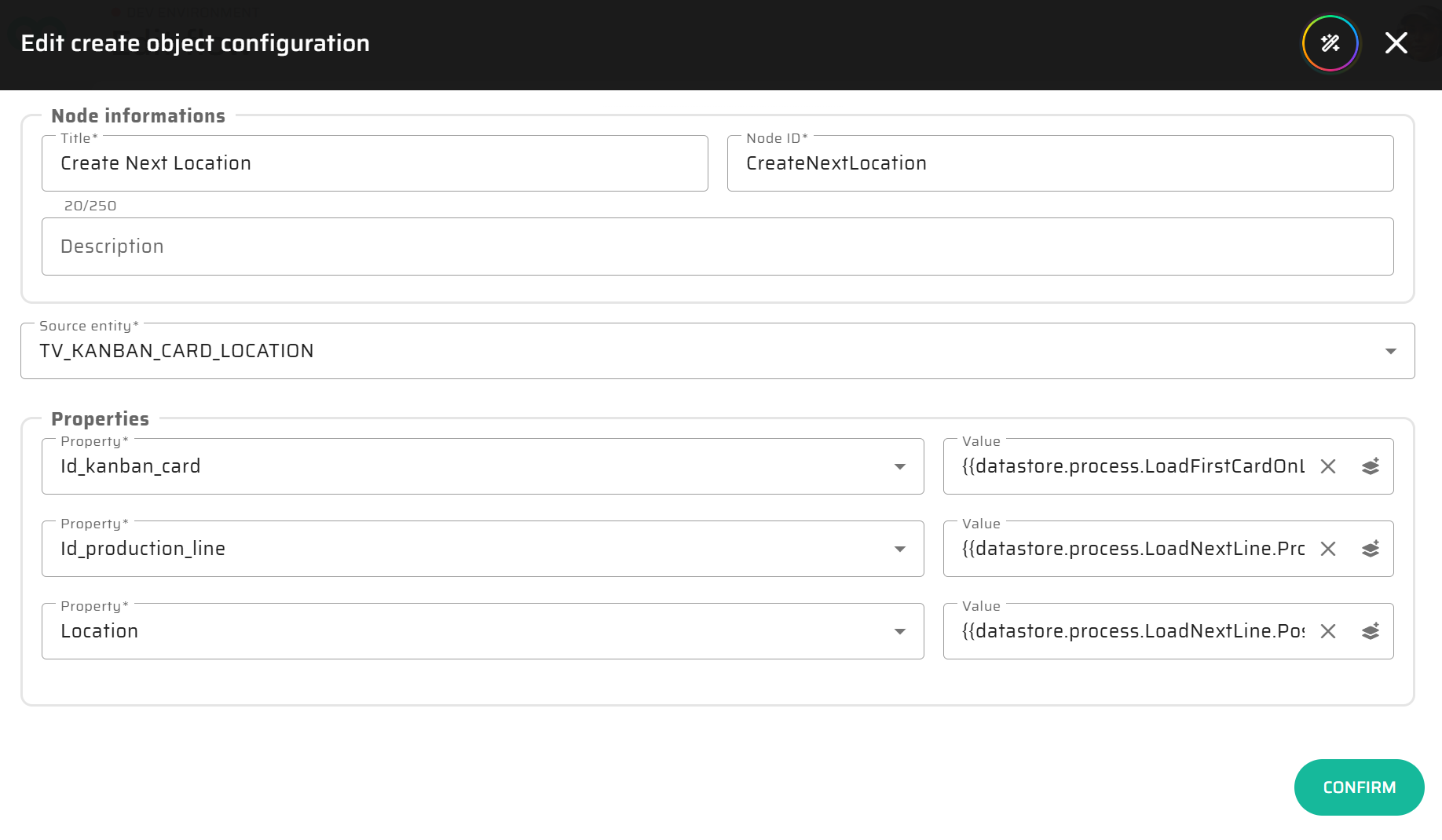
Connect this to an End node.
Next up: ➔ Launcher Logic (Checking and Releasing a Batch)