
Publishing the App (Layouts & App Structure)
You have successfully built the database (Entities), the business logic (Flows), and the interactive interface (Widgets). But right now, your Widget exists in isolation.
To make it accessible to your users, you need to do two things:
Put the Widget onto a page (Layout).
Put that page into the navigation menu (Application Structure).
Let's publish your Kanban Board:
Step 1: Creating a Layout (Page Composition)
A Layout defines how visual and logical elements are arranged on a single page. It acts as a reusable template that can hold one or more widgets.
Navigate to Configuration Studio ➔ UI Designer ➔ Layouts.
Click to create a new layout and name it Kanban Board.
In the Layout Items section, you define the grid. Since our Kanban Board is a full-screen application, we just need one main container.
Add your Kanban Board widget into this layout grid.
Save the layout.
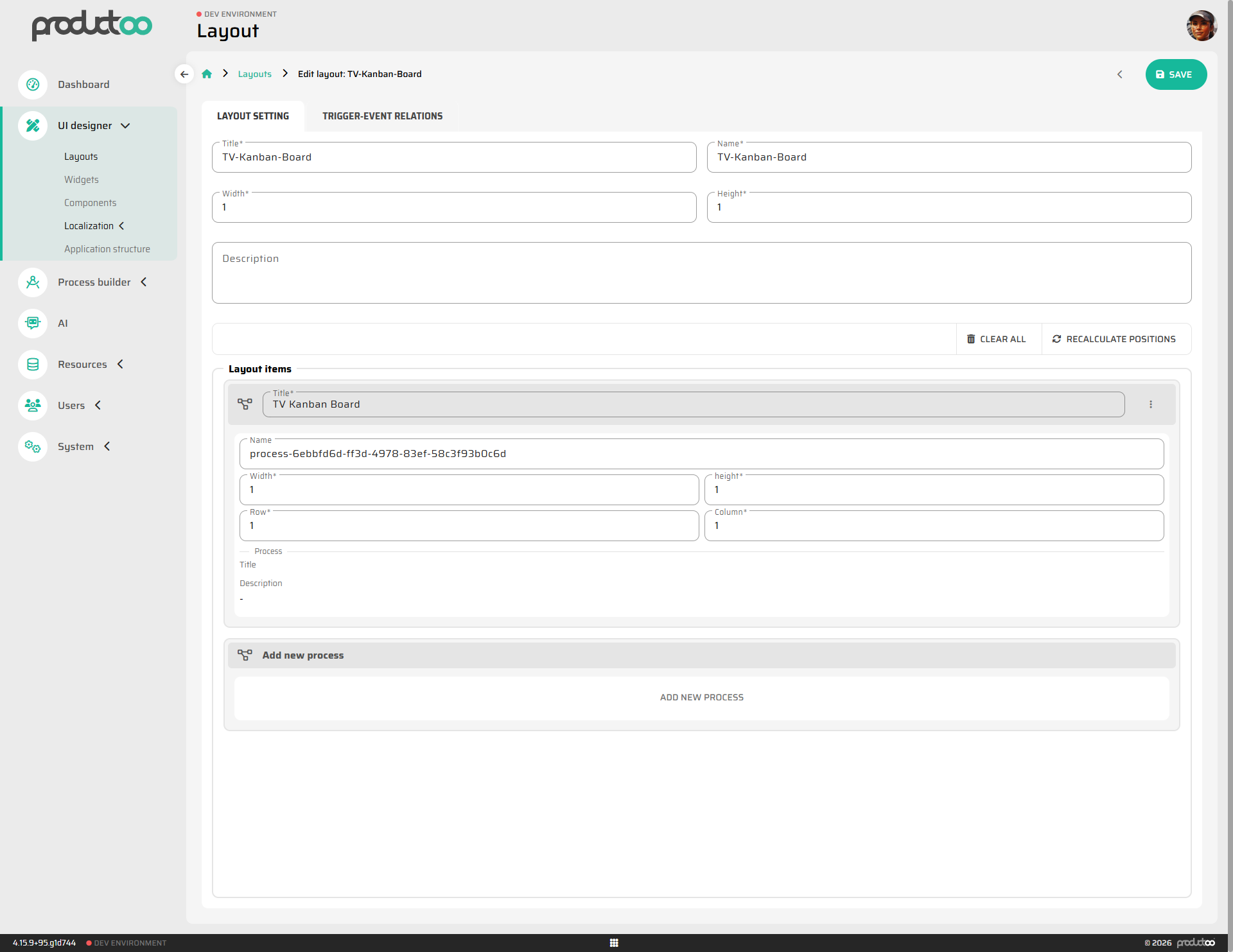
Step 2: Defining the Application Structure
The Application Structure describes how pages and modules are organized in the system. It provides the foundation for routing and navigation. This is where we add our new page to the sidebar menu.
Navigate to Configuration Studio ➔ UI Designer ➔ Application structure.
Create a new entry and name it Kanban Board.
Layout: Select the
Kanban Boardlayout you just created in the previous step.Icon: Choose a fitting icon (e.g.,
fa-regular fa-diagram-successor) to represent the board in the menu.Visibility: Mark the page as Public.
Parent Module: Assign it to the PRODUCTION CONTROL application so it appears in the correct section of the P4 Platform.
Click SAVE.
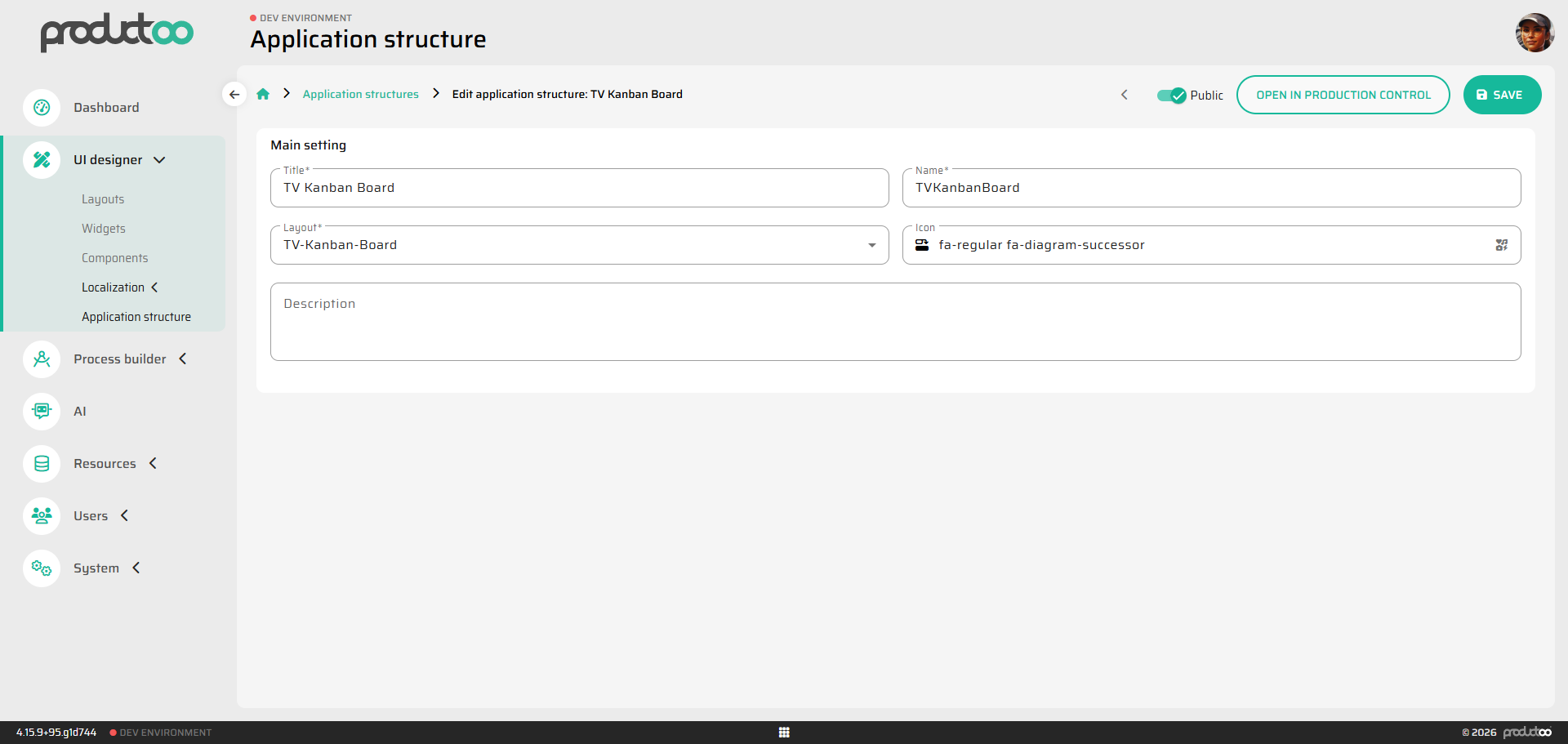
Step 3: The Final Result
That's it! You can now open the Production Control application from the main P4 dashboard, and you will see your brand-new TV Kanban Board in the side menu.
Type in your Kanban Loop ID, click Load, and watch the data appear. Click the buttons to move the cards between lines and recycle them back to the launcher.
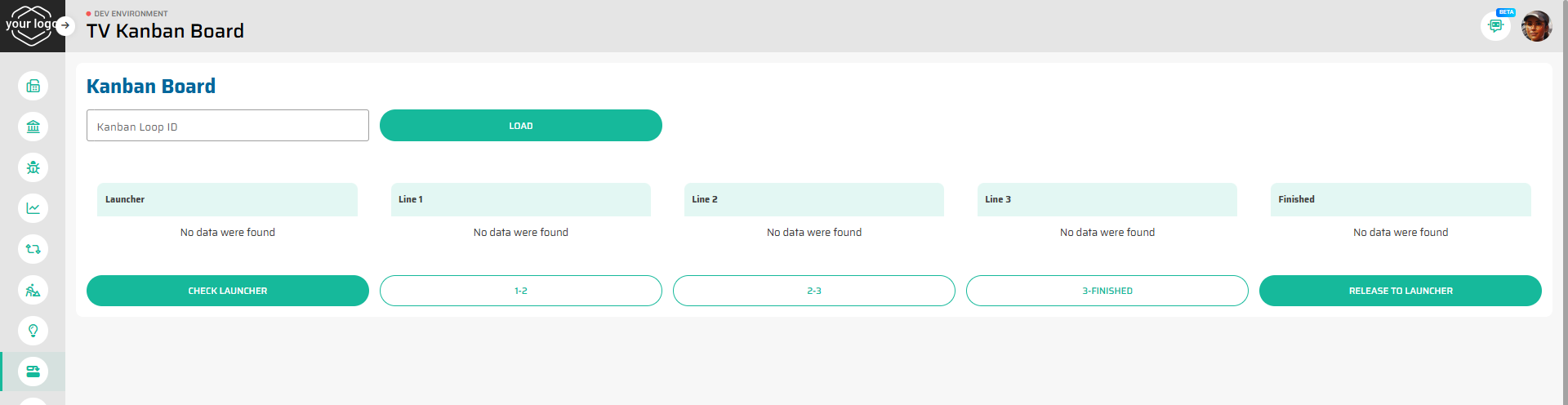
Congratulations!
You have successfully built a full-fledged, interactive manufacturing application on the P4 Platform without writing any code. You've mastered Entities, Flows, Widgets, Layouts, and Application Structure.
You are now ready to automate any business process your factory needs.