P4 - infrastructure and application installation
This document describes how to install infrastructure and P4 application onto a Windows server.
The result is fully ready P4 application
Prerequisities:
Windows server 2019 or higher. + RDP connection. SSH connection is optional. Powershell at version 5.1 or higher.
Database
MSSQL database server with prepared Login, user, schema and empty database.
orOracle database server with empty database instance and user. Oracle database currently contains some limitations. The Database objects must be created manually.
P4 license key + license Unique ID
DNS for the application (or IP address if no DNS is used)
Installation geo timezone (https://en.wikipedia.org/wiki/List_of_tz_database_time_zones)
SSL Certificates for the web server
Guide
1) Config files creation
The first step is to prepare 3 configuration files. Before deployment, please validate each file. You can use this tool: https://jsonchecker.com/
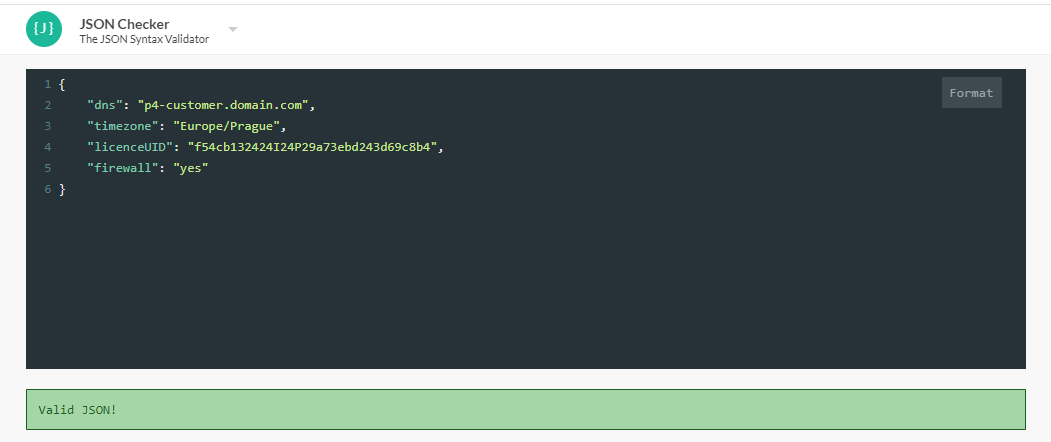
infra.conf (JSON file)
{
    "dns": "p4-example.domain.com",
    "timezone": "Europe/Prague",
    "licenceUID": "f54cb132424I24P29a73ebd243d69c8b4",
    "firewall": "yes"
}
dns - DNS for the application. IP can be used if prefered.
timezone - Geolocation timezone. See the timezones: https://en.wikipedia.org/wiki/List_of_tz_database_time_zones
licenceUID - Unique licence identificator. It is provided as the part of the licence.
firewall - If add new Rules to Windows firewall to allow port 80, 443 and 8080. The server might be blocking the ports for traffic. If so, the setup procedure can enable firewall rule.
autoSetup.conf (JSON file)
{
    "path": "C:/productoo/www",
    "defaultLang": "en-US",
    "proxy": "",
    "token": "QiLCJhbGciOiJIUzI1NiJ9.eyJuYW1lIjoiSGV4YWdvbiAtIHByb2R1Y3Rpb24gc2VydmVyIiwicFRVSCI6ImY1NGNi....",

    "dbHost": "{{host}}",
    "dbPort": "{{dbPort}}",
    "dbDriver": "sqlsrv|oci8",
    "dbName": "{{databaseName}}",
    "dbUser": "{{userOrLogin}}",
    "dbPassword": "{{password}}",

    "dbUserQuickview": "{{userOrLoginForQuickview}}",
    "dbPasswordQuickview": "{{passwordForQuickview}}",

    "host": "https://p4-example.domain.com"
}
path - Root installation dir of application (including /www)
defaultLang - Default language of the application, e.g. en-US
proxy - P4 installation scripts require connection to Productoo servers. If the proxy is in use it needs to be specified. Otherwise Productoo server must be accessible.
token - licence key provided by Productoo
host - URL address of the application including protocol (https). URL is a complete address of protocol (https) and DNS.
dbHost - database host address
dbPort - database port - for MSSQL default is 1433, for Oracle 1521
dbDriver - sqlsrv for MSSQL or oci8 for Oracle
dbName - database or instance name.
dbUser - database user
dbPassword - database user password
dbUserQuickview - database user for quickview
dbPasswordQuickview- database user password for quickview
autoUpgrade.conf (JSON file)
{
    "version": "be:4.7.18.0,fe:4.7.18"
}
version - Required application version
2) Deploy to the server
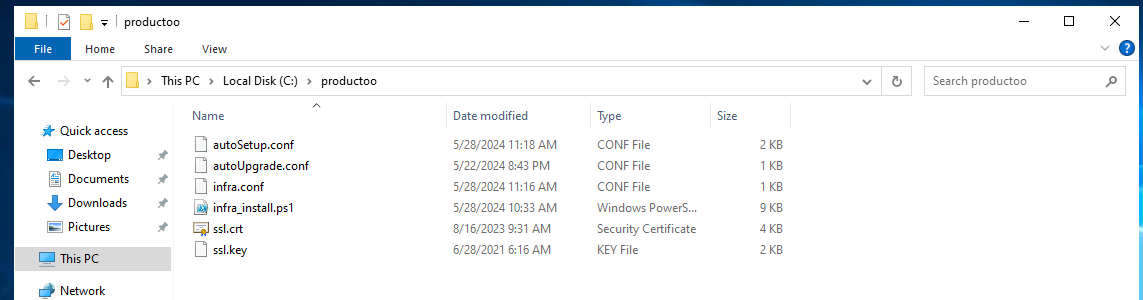
Download and deploy Powershell script to the application server together with the configuration files and certificates.
Installation script: https://drive.google.com/file/d/1rZsk_SYQ3kEpqWQ2HHVvLZ7doxZ9aic-/view?usp=drive_link
The filenames must be same as shown in following screenshot
3) Run installation
Installation must be launched in Powershell run as Administrator
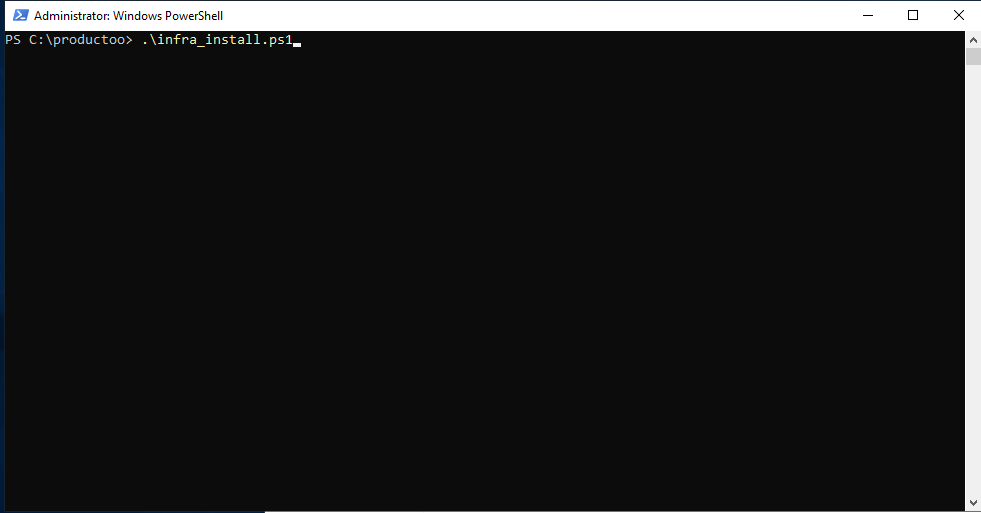
cd C:\productoo
.\infra_install.ps1
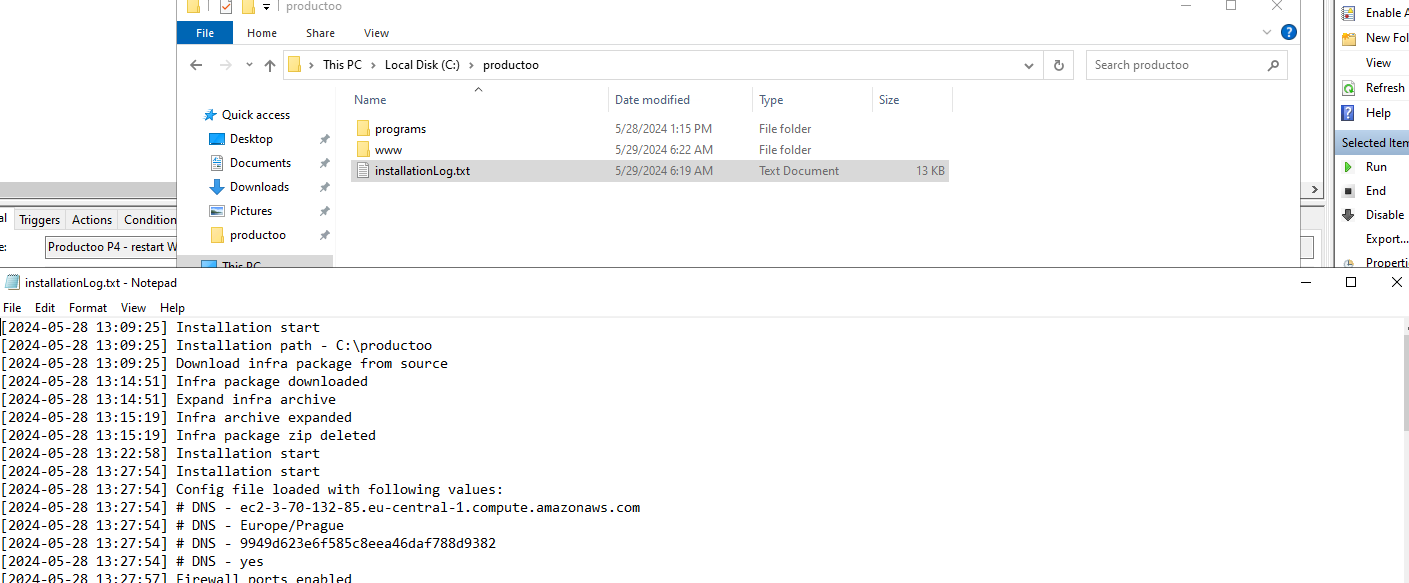
After installation the installationLog.txt is preserved to check the installation status.
The last record in the installationLog must be "Installation was successfully finished". If not, the installation failed.
Please wait after installation about 2 minutes until all services are restarted and application is fully ready to be used.
4) Run application
After installation check the application at provided DNS in the web browser. You should be redirected to Start page and be able to login into the application.