Inbound deliveries
Inbound deliveries involve receiving and managing incoming shipments or goods. It includes steps like notification, arrival, unloading, inspection, and storage of the received items.
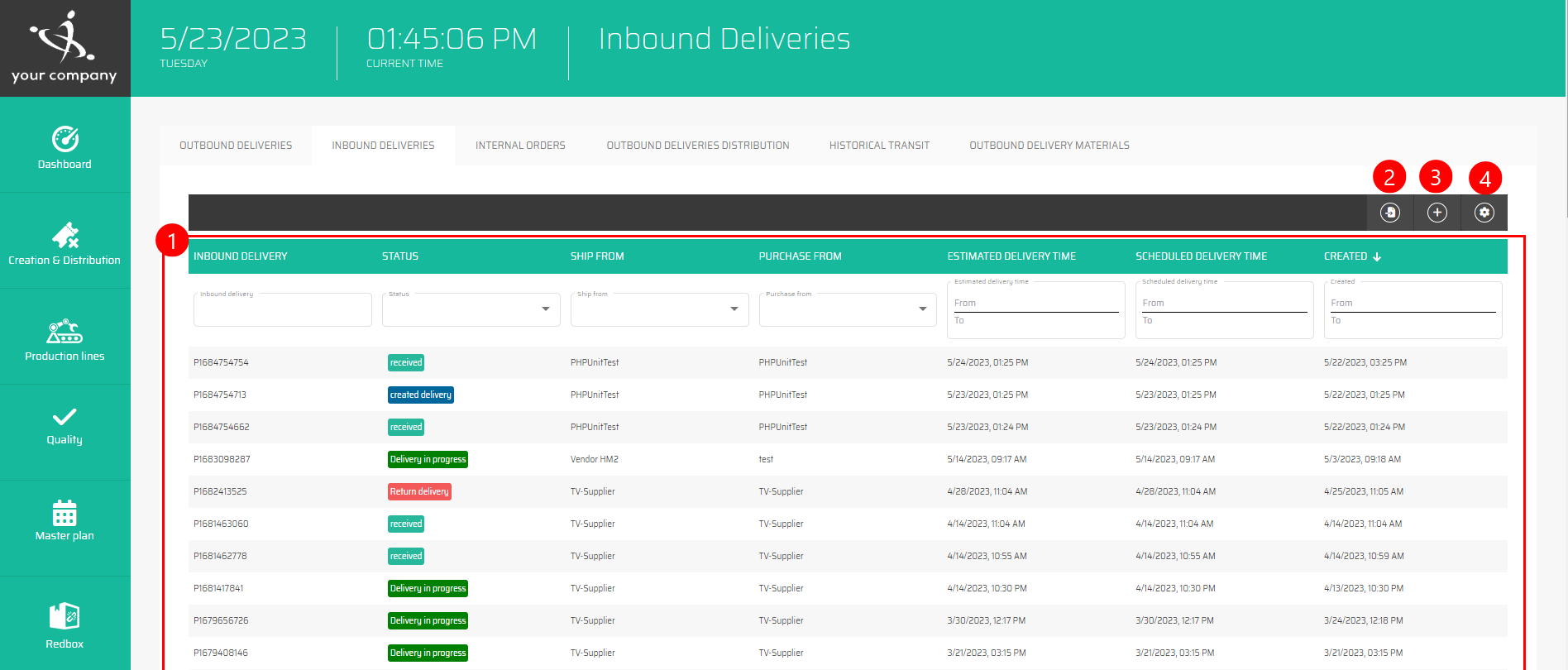
List of all inbound deliveries
Most often orders are imported from another system, the import itself is automatic, but it can be forced using the button :import:, and specifying the concatenated source.
Create an order manually with the button :Add_buttonPC_:
You can change the page layout with customize table :Customize_Table:
The list of all Inbound deliveries can be filtered by all shown columns, it means by:
ID
Inbound delivery
Status
Ship from
Purchase from
Note
Estimated delivery time
Scheduled delivery time
Time created
Creation of a new inbound delivery
Create an order manually with the button :Add_buttonPC_:

And save with :apply:.
It the table below you will find all attributes which are possible to insert into this dialog together with its description.
# | Parameter name | Limitations | Possible values | Description |
|---|---|---|---|---|
1 | Sold to | Defined value | The list of customers available for the selection | |
2 | Ship to | Defined value | The list of Customers available for the selection | |
3 | Scheduled Finish time | HH:MM:SS, DD.MM.YYYY | 00:00:00 - 23:59:59, Day and month in the year | |
4 | Scheduled Delivery time | HH:MM:SS, DD.MM.YYYY | 00:00:00 - 23:59:59, Day and month in the year | |
5 | Truck image | Defined value | The list of Truck image available for the selection |
Inbound delivery detail
Information about:
Inbound delivery
Supplier from whom an item or product has been acquired through a purchase transaction.
Location or origin from where the item or product is being dispatched or shipped to the recipient or customer.
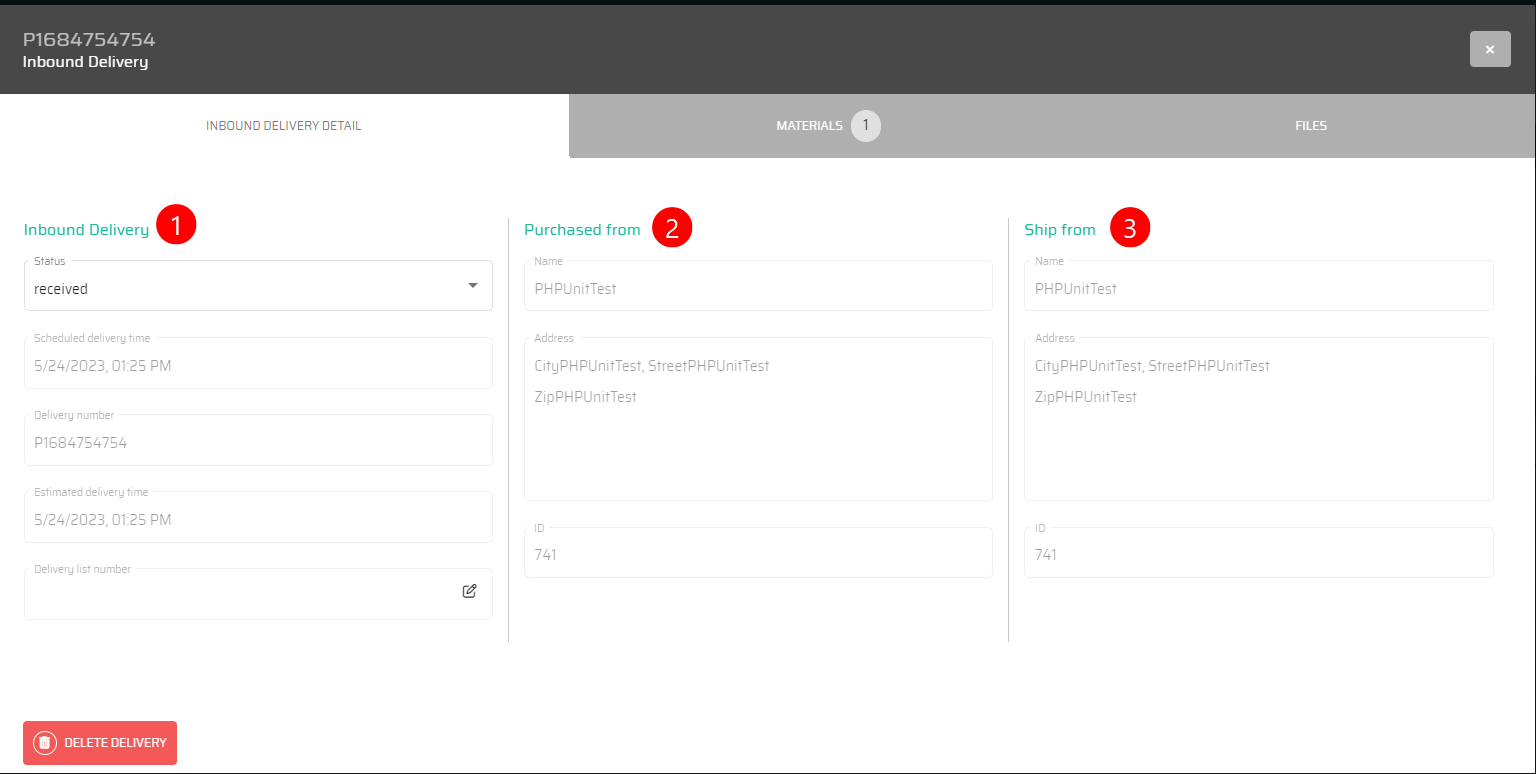
The button :Change: allows us to edit some information.
Specific ordered items
a. date of receipt - If the items from the order are arriving gradually.
b. Quantity - If the items from the order are arriving gradually.
c. Set the Handling Unit Template
d. Set the Warehouse
e. Set the area
f. Set the bin
g. Option to print
h. The "TO STOCK" feature automatically generates warehouse materials in accordance with our specified requirements and places them in the warehouse inventory.
i. Open the batch detailShow more details with :rollout:
Option to add an item manually
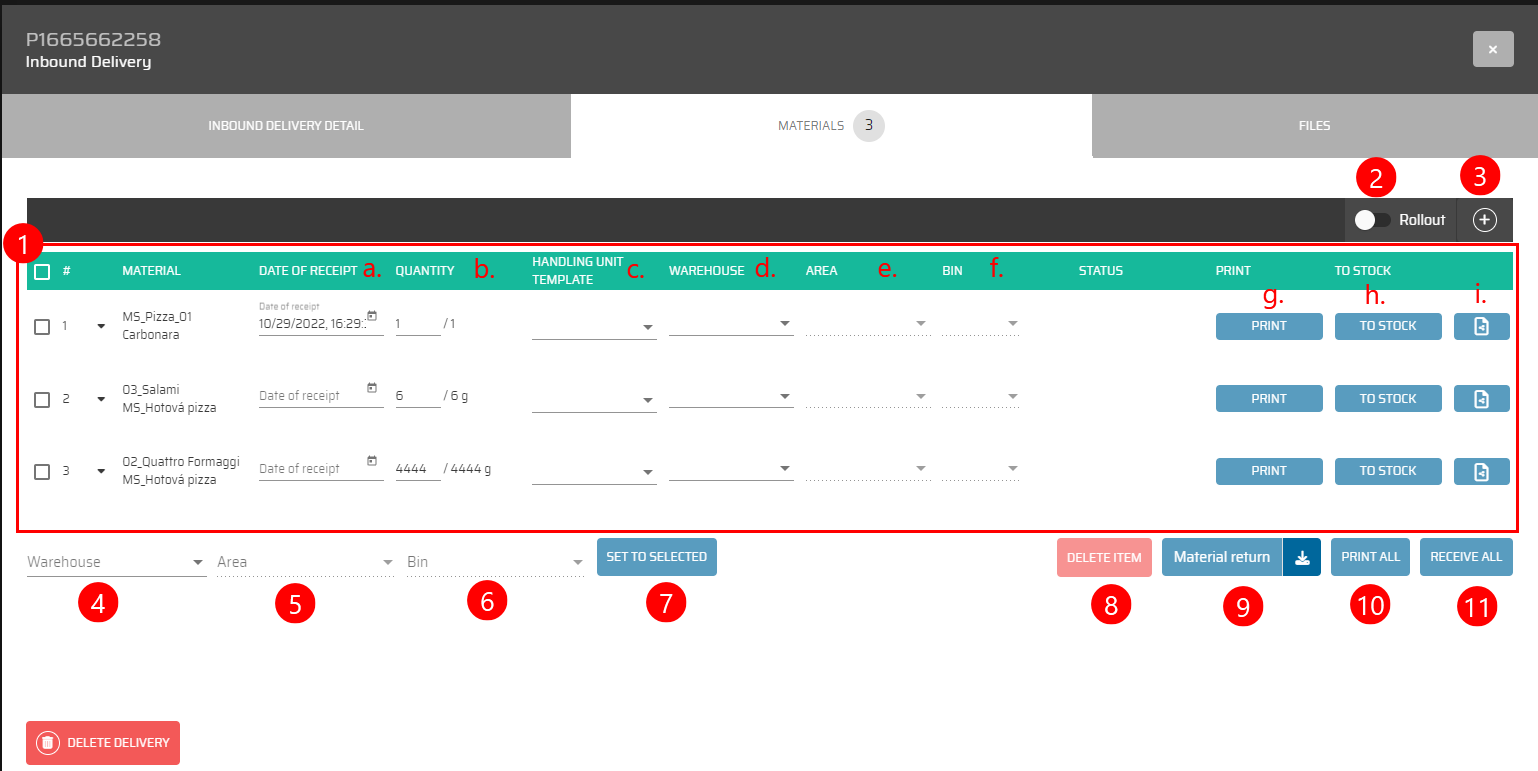
→ Our system provides flexibility by allowing users to define the desired quantity of packages and the number of individuals pieces per package. This feature is particularly useful when there is a need to recieve the total number of pieces in multiple smaller batches.
With :import: you have the ability to seamlessly import information from Excel.
Of course, we have the option to delete the order with :DeleteItem:.
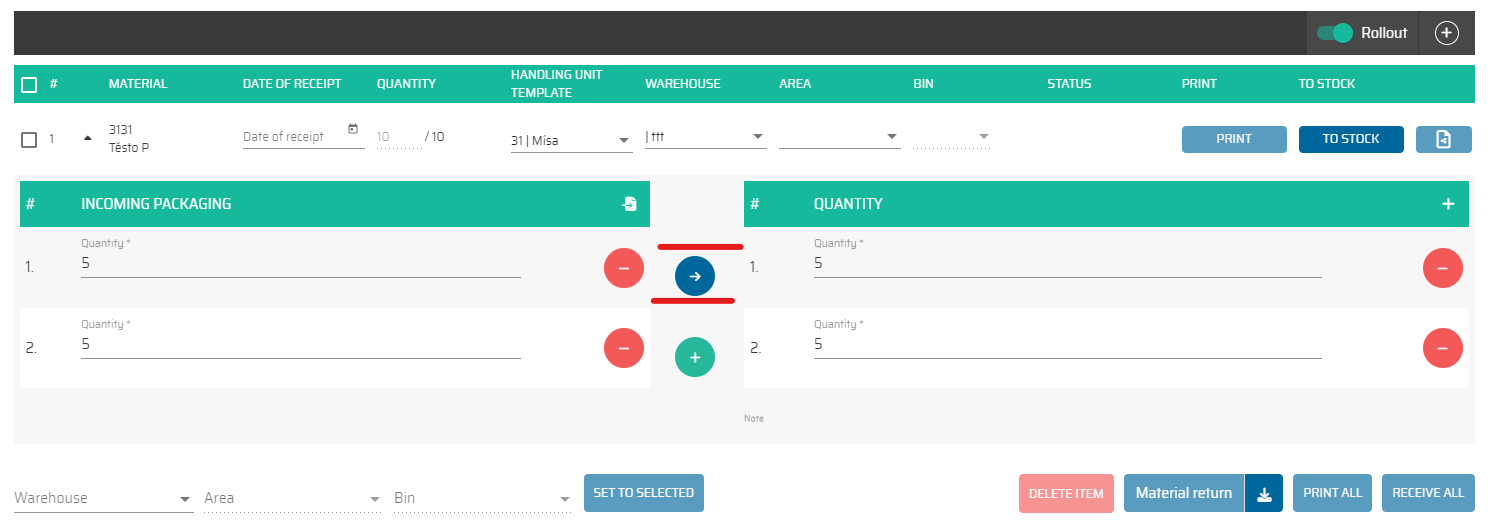
Upon receiving items into the stock, it is essential to conduct an inspection procedure as follows:
The warehouse personnel performs a thorough examination of the received items, including factors such as weight, quality, and condition.
The actual data obtained from the inspection is promptly recorded in the system under the category of "Incoming Packaging."
Once the inspection is completed, the warehouse personnel verifies and confirms the control process in the system, indicating that the items have been properly checked and documented.
Material return
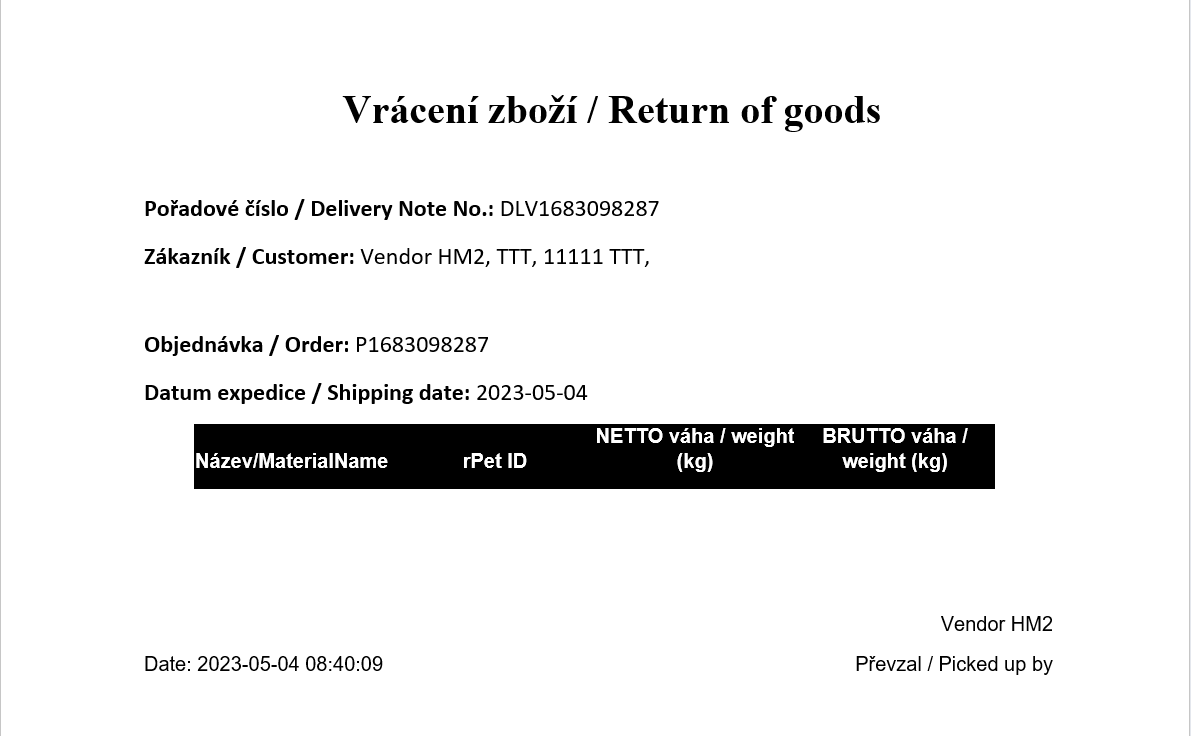
→ If we press :MaterialReturn: , a document will be generated in Word that contains all the necessary information to return the material:
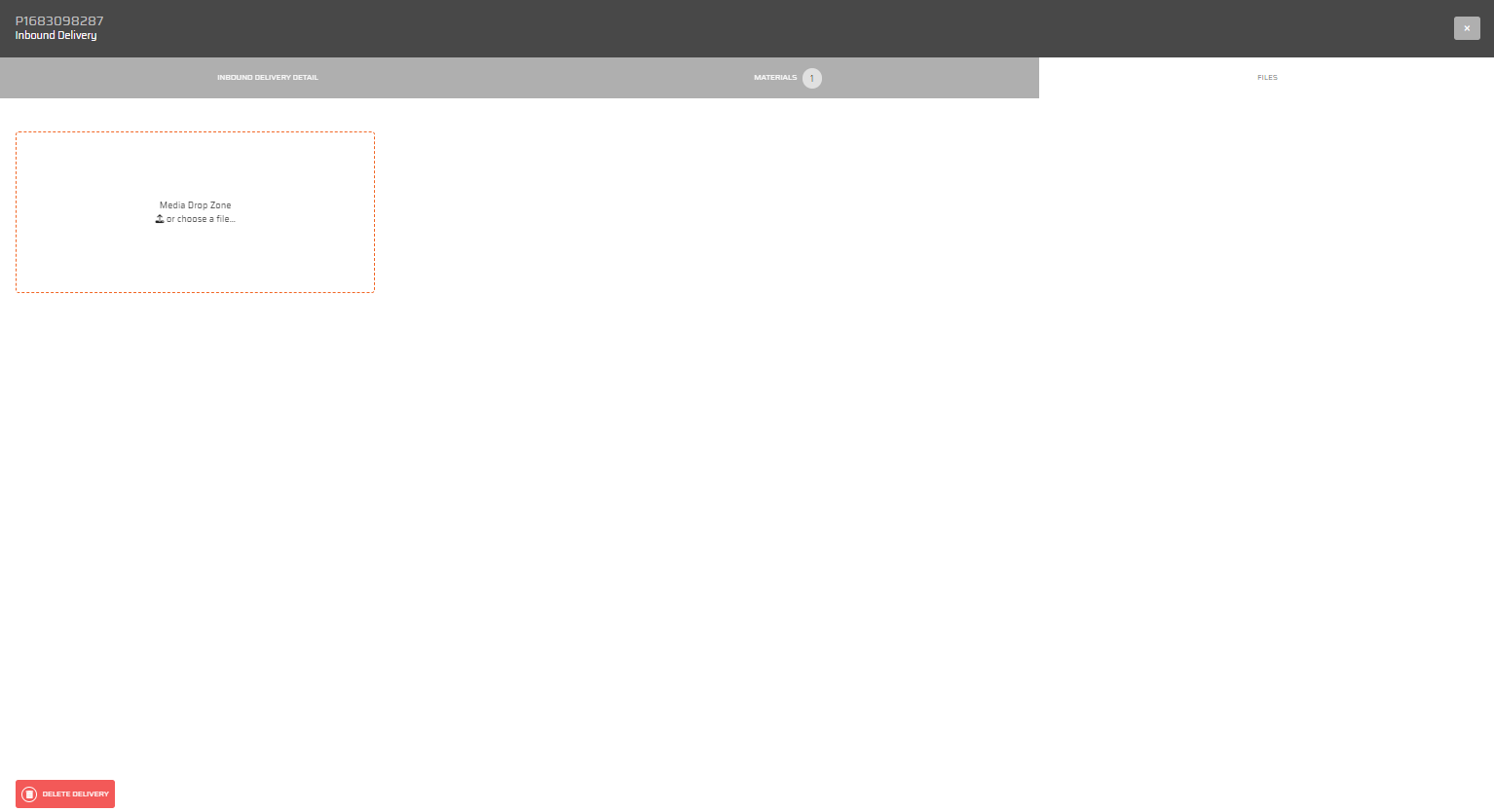
Possibility to upload documents.